Studio Themes
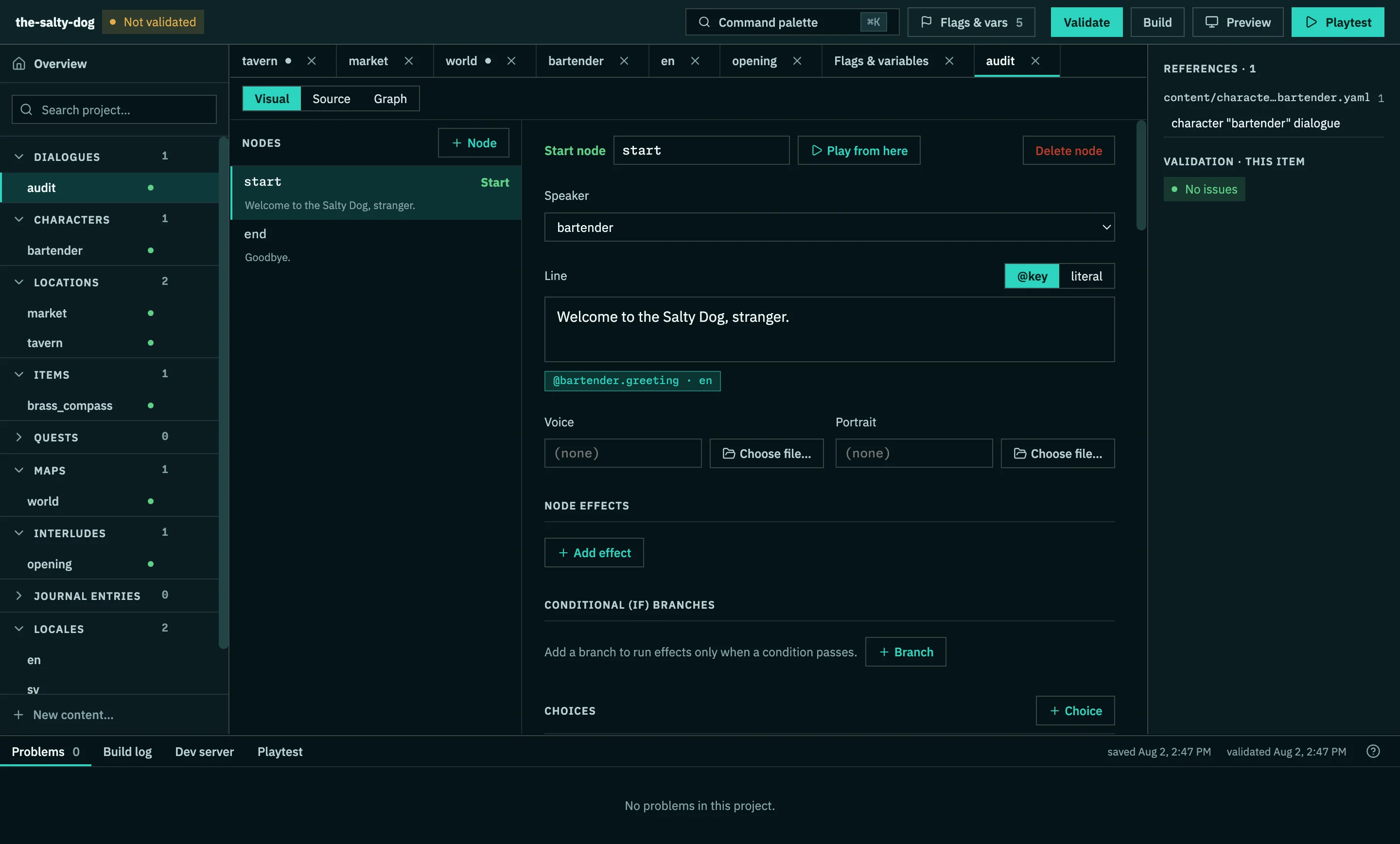
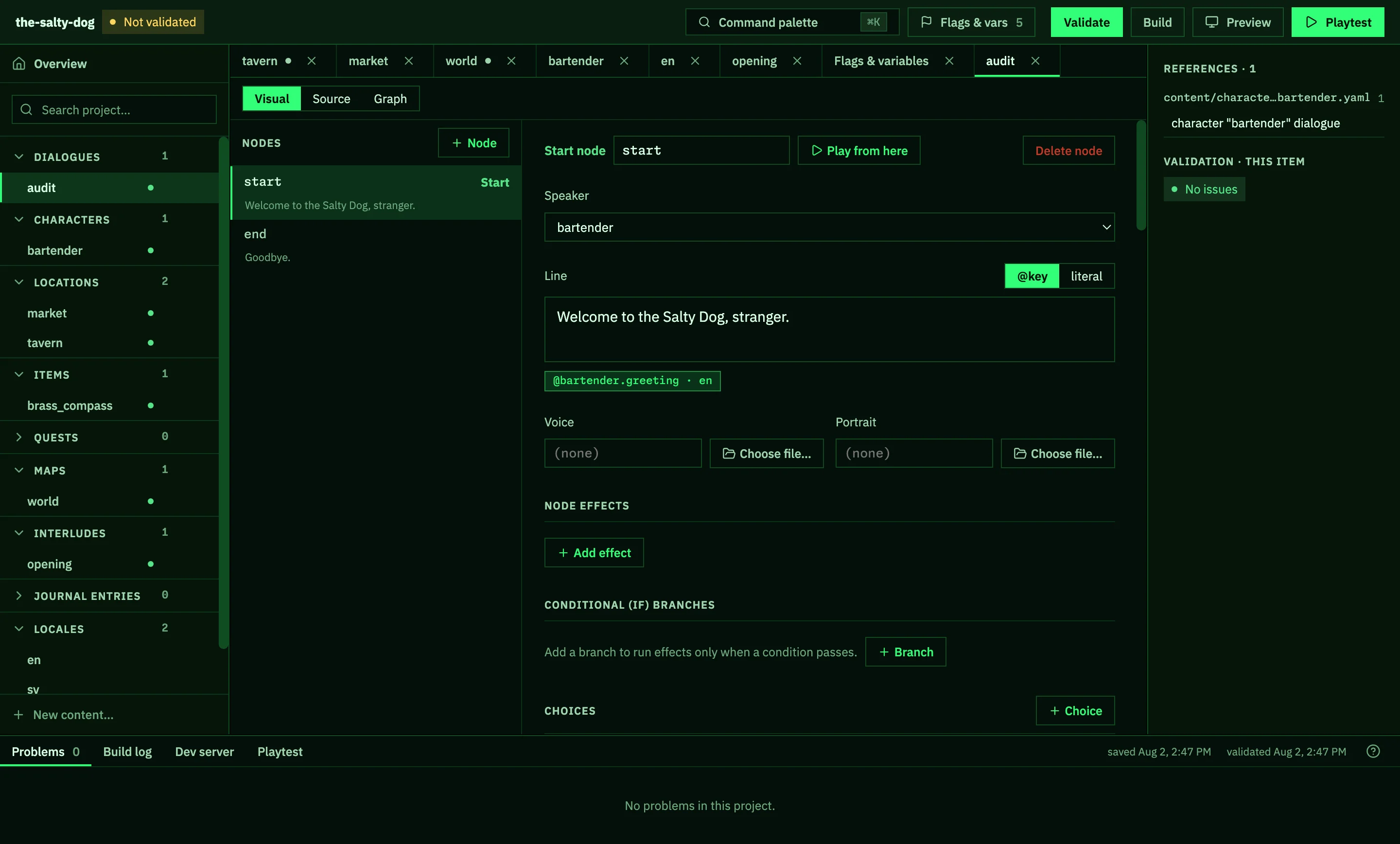
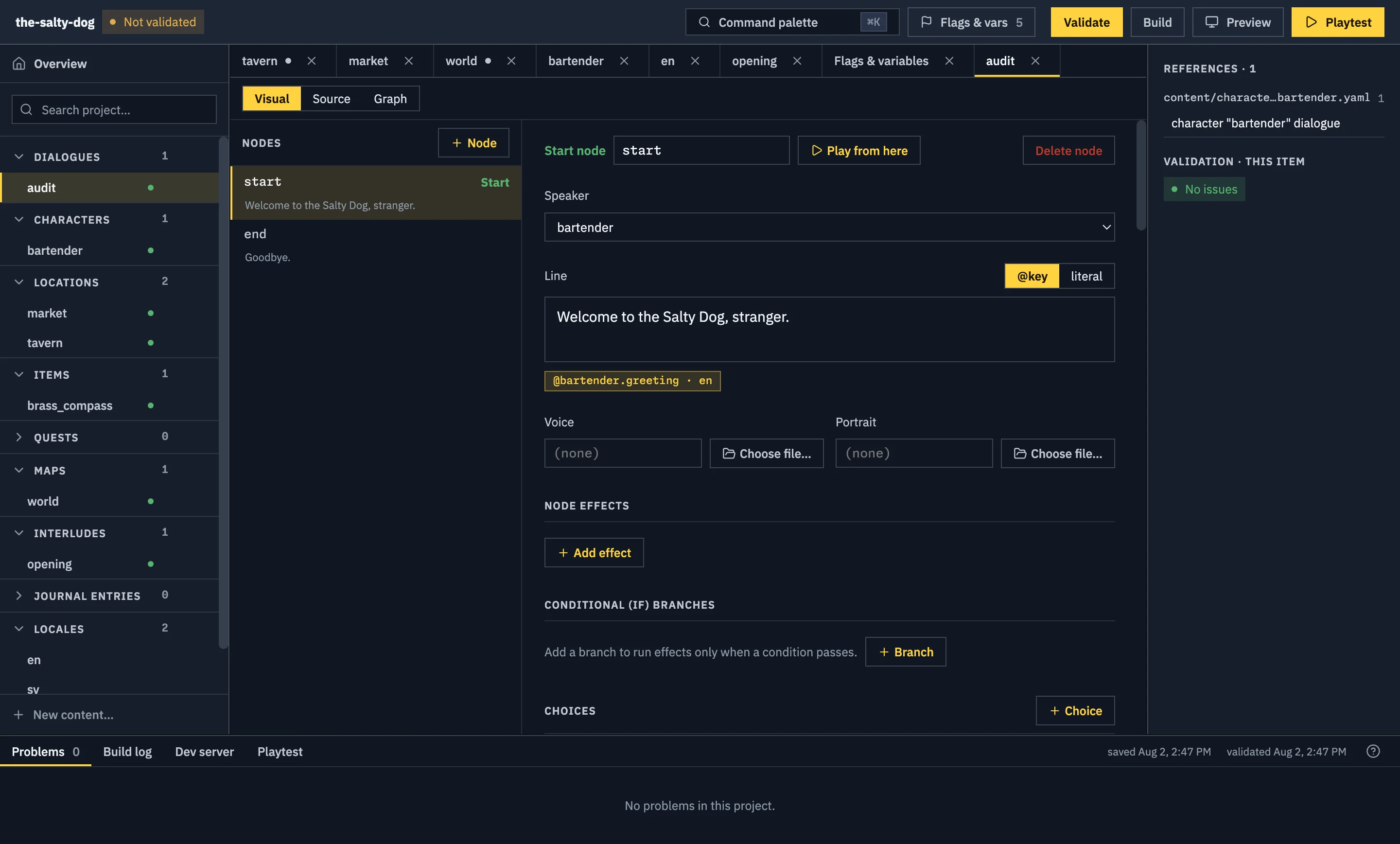
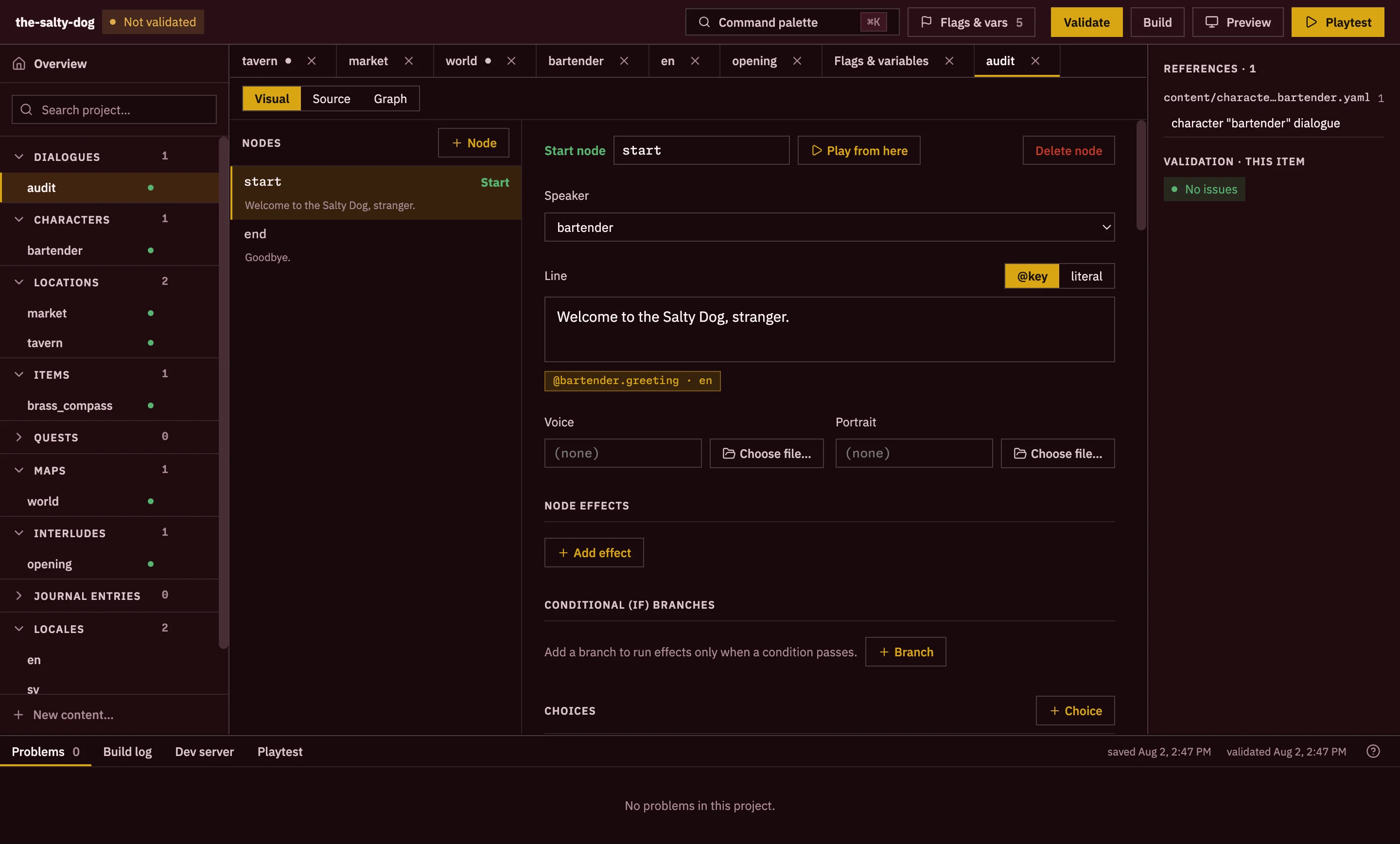
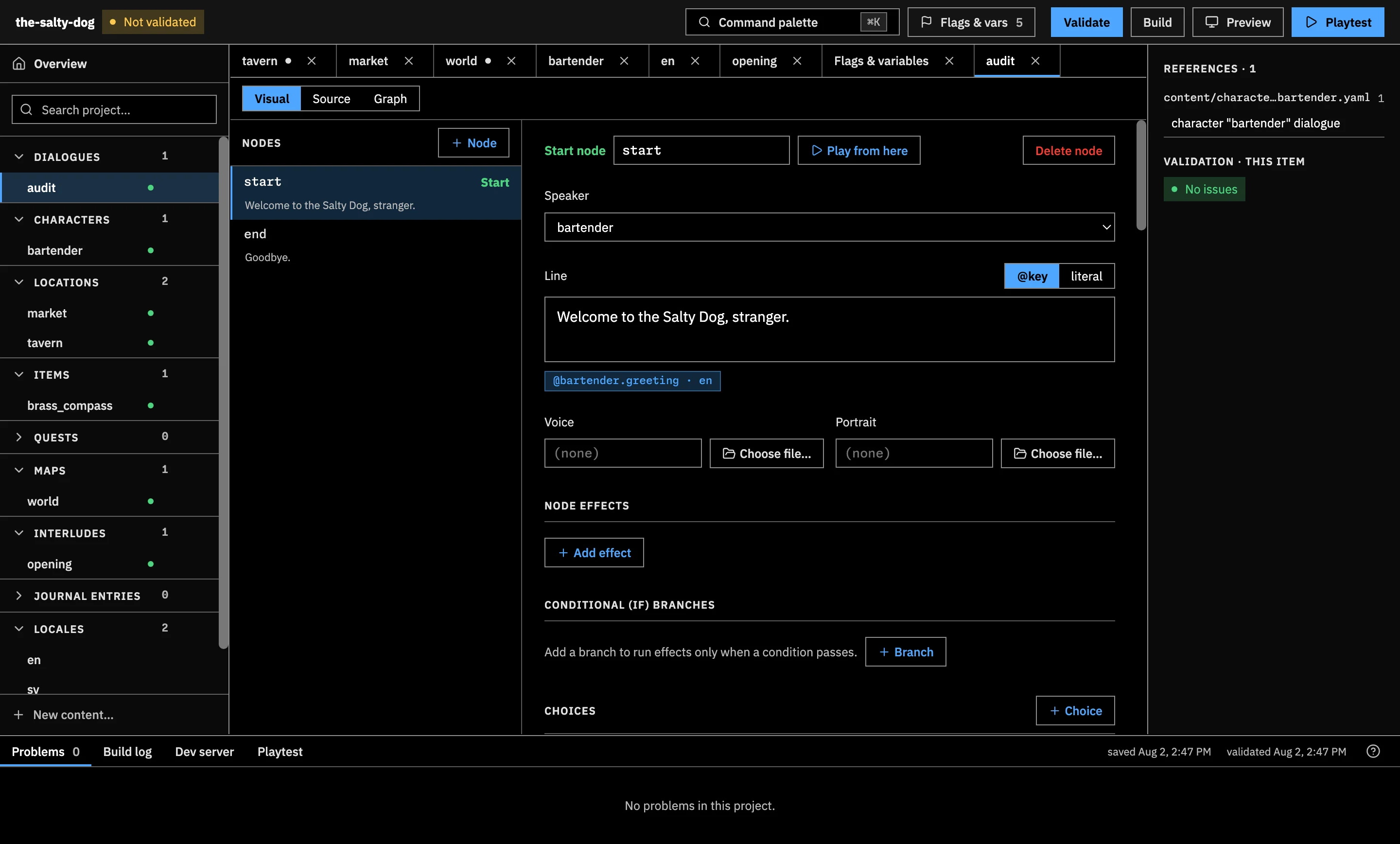
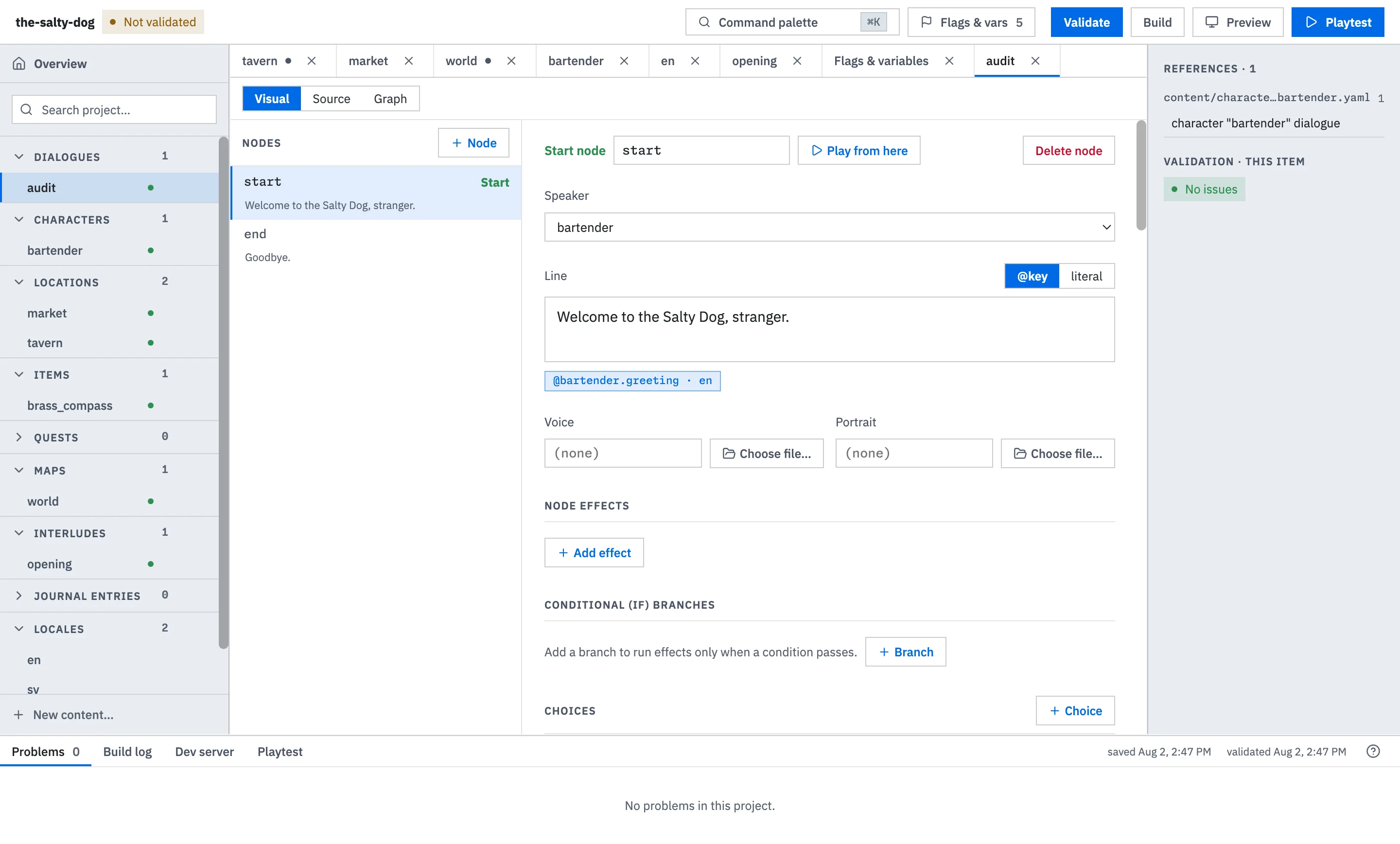
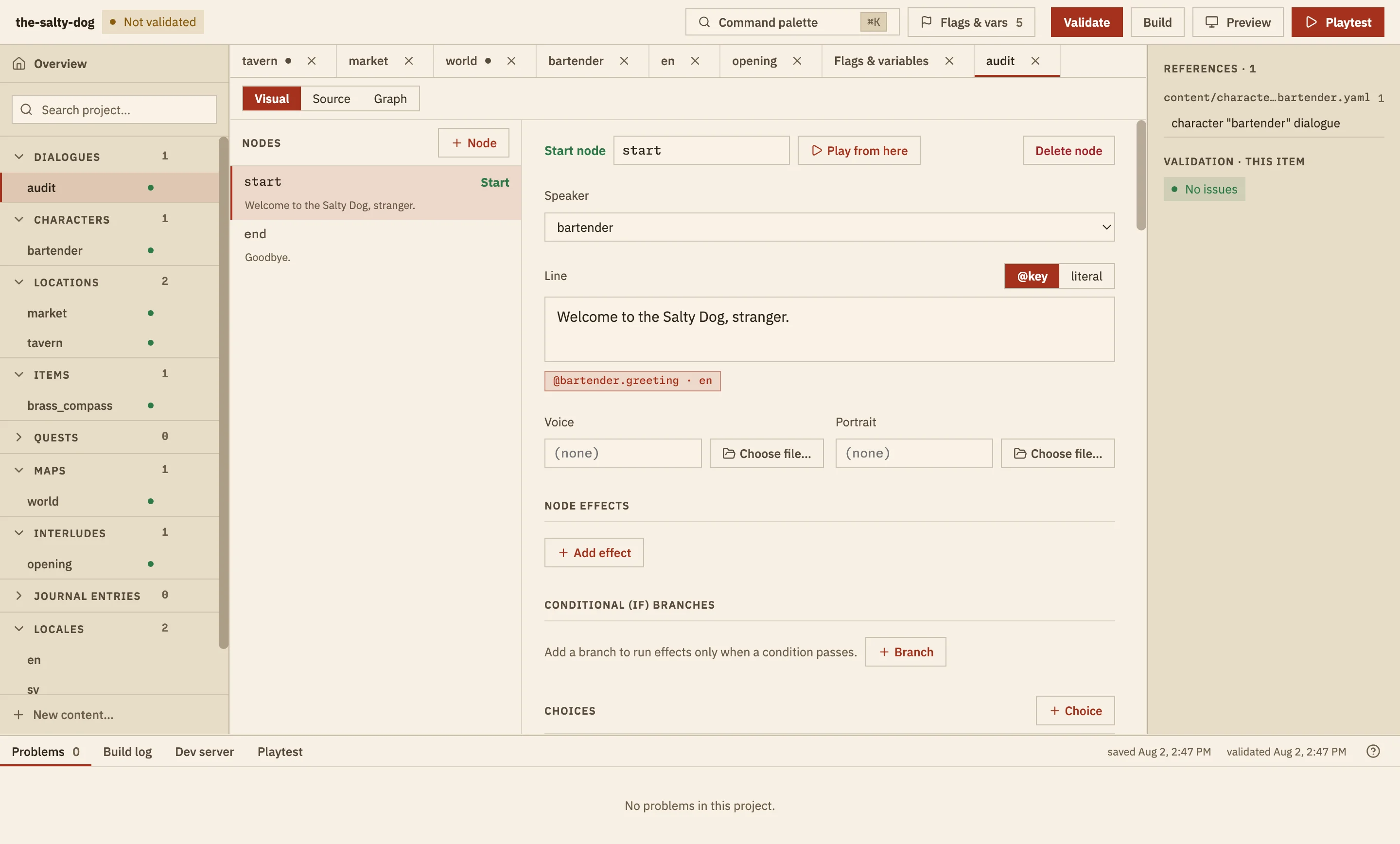
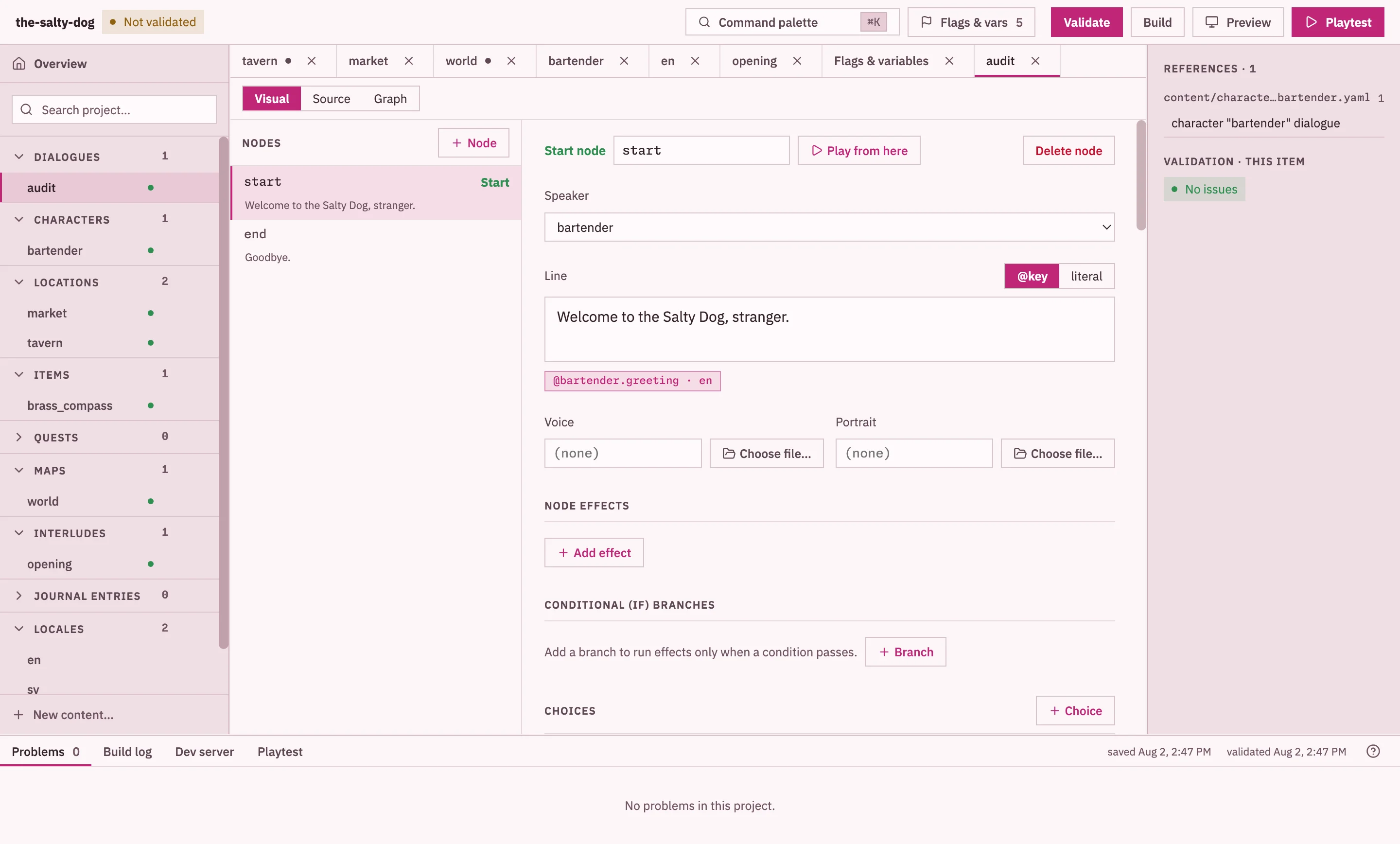
Themes change the colors of your Studio workspace. Choose one that keeps your writing and project tools comfortable to read.
Choose a theme
Section titled “Choose a theme”- Open Themes in the application menu.
- Select a theme.
Studio applies the theme right away and remembers it the next time you open the app. You can also open the command palette with Ctrl+K on Windows or Cmd+K on macOS, type the name of a theme, and select it.
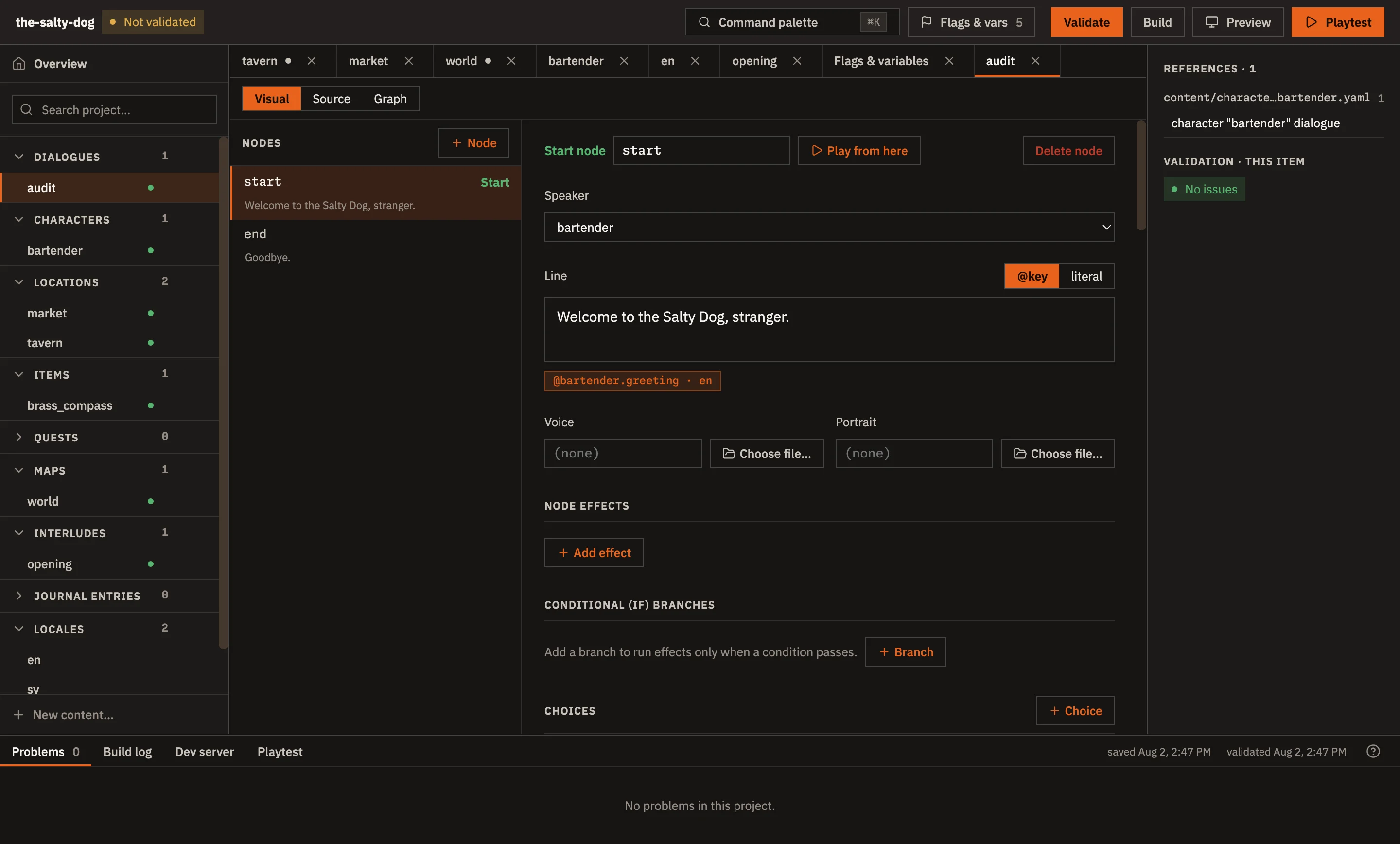
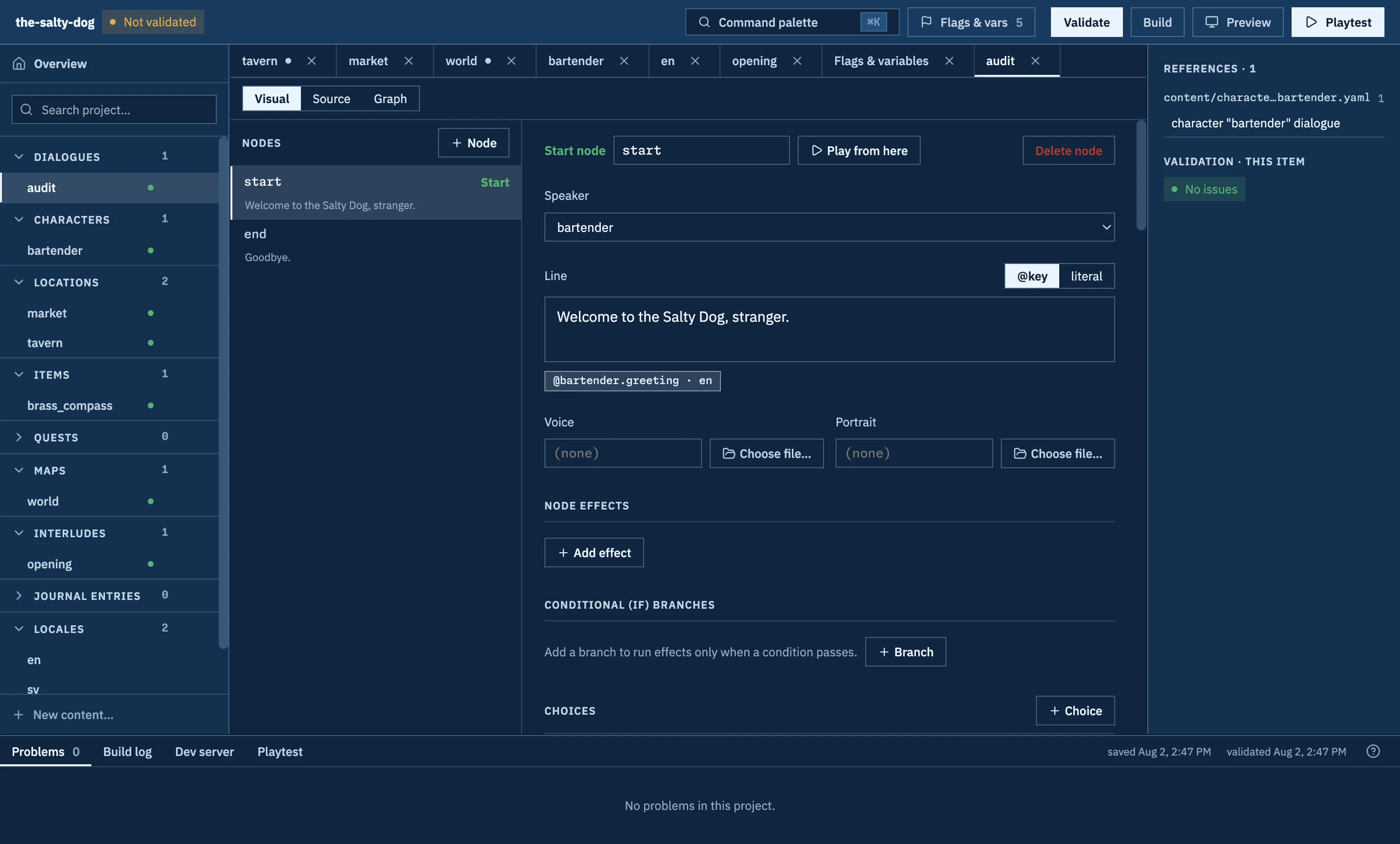
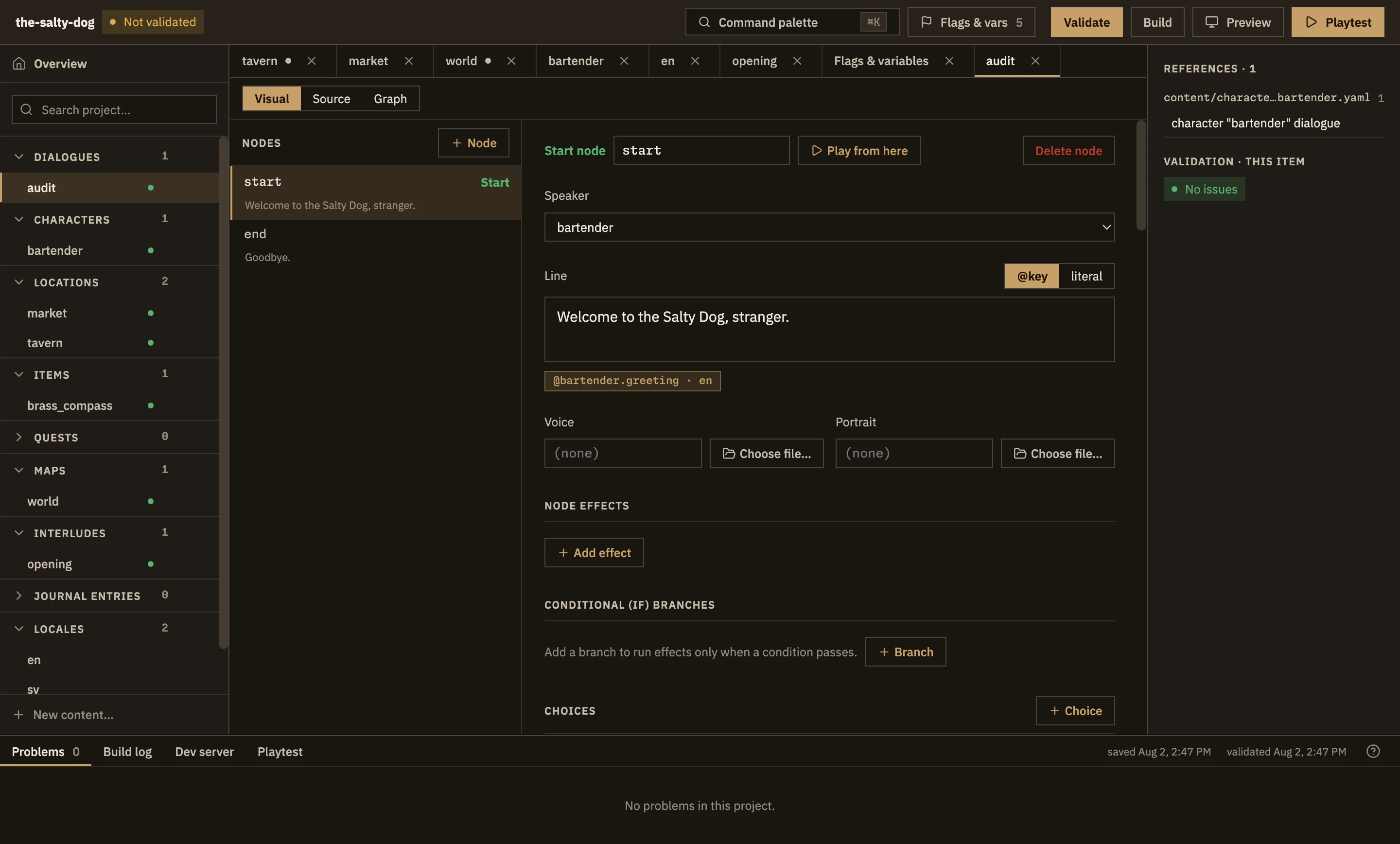
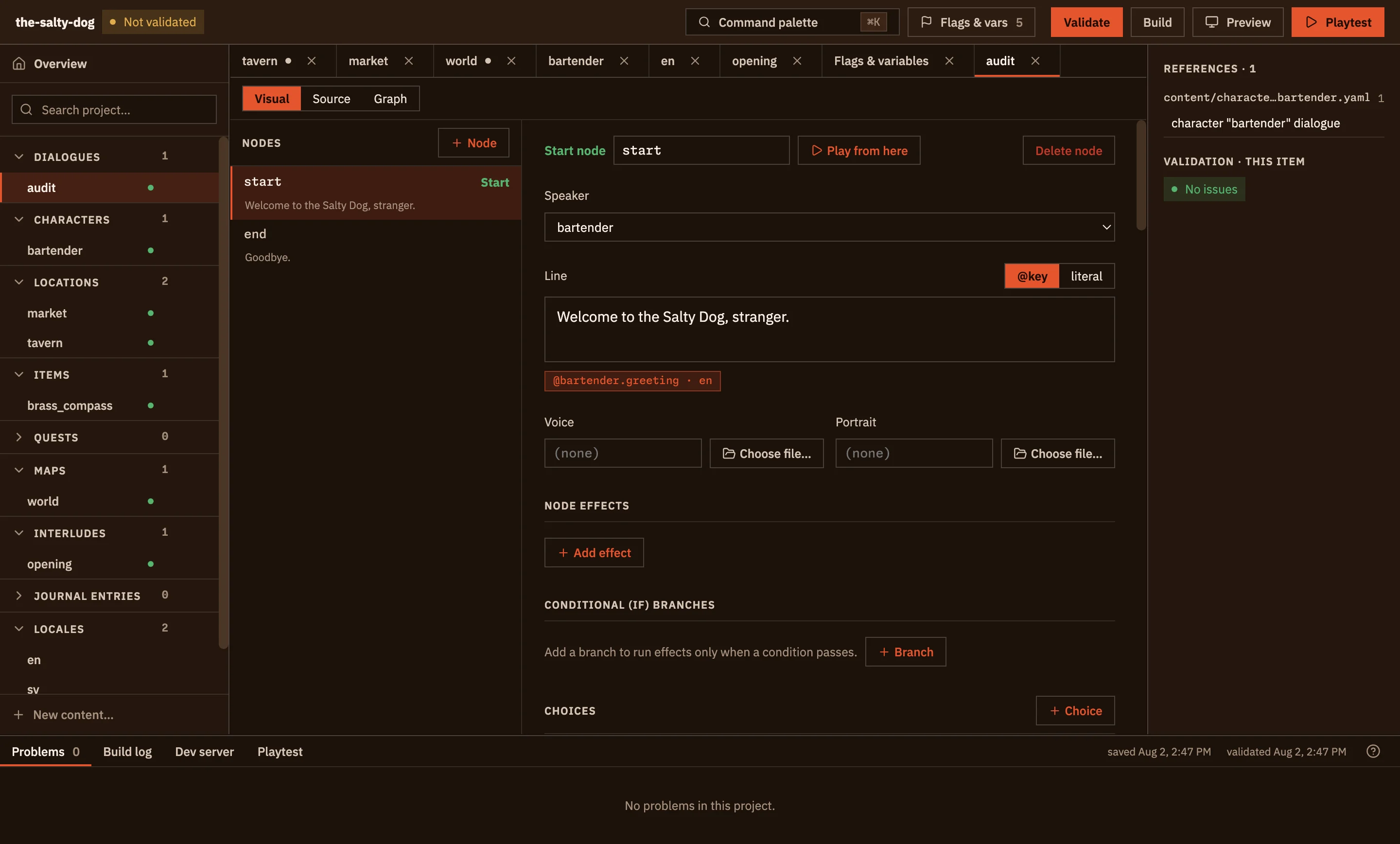
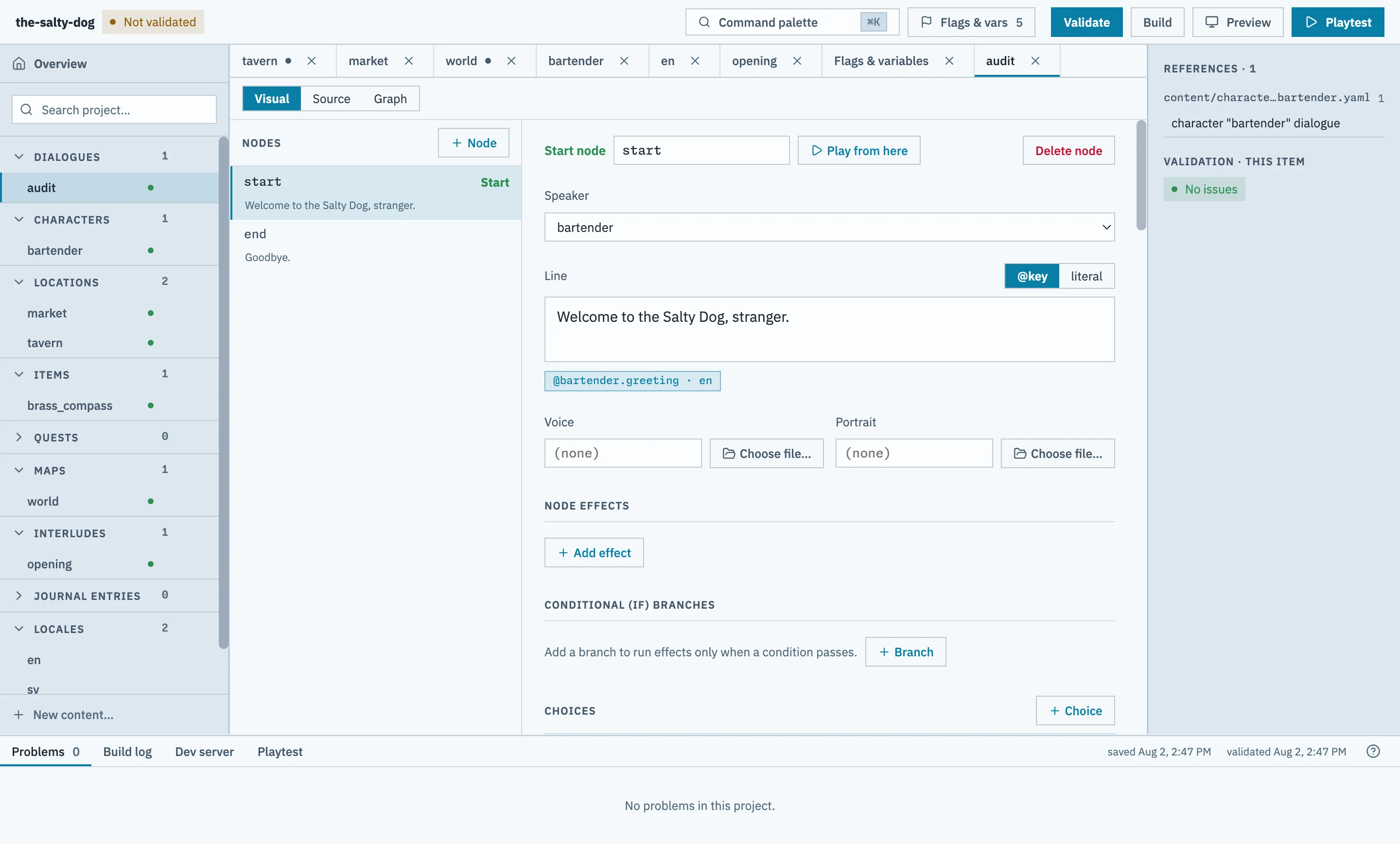
Each theme below is shown with its own default accent color. Select an image to see it at full size.
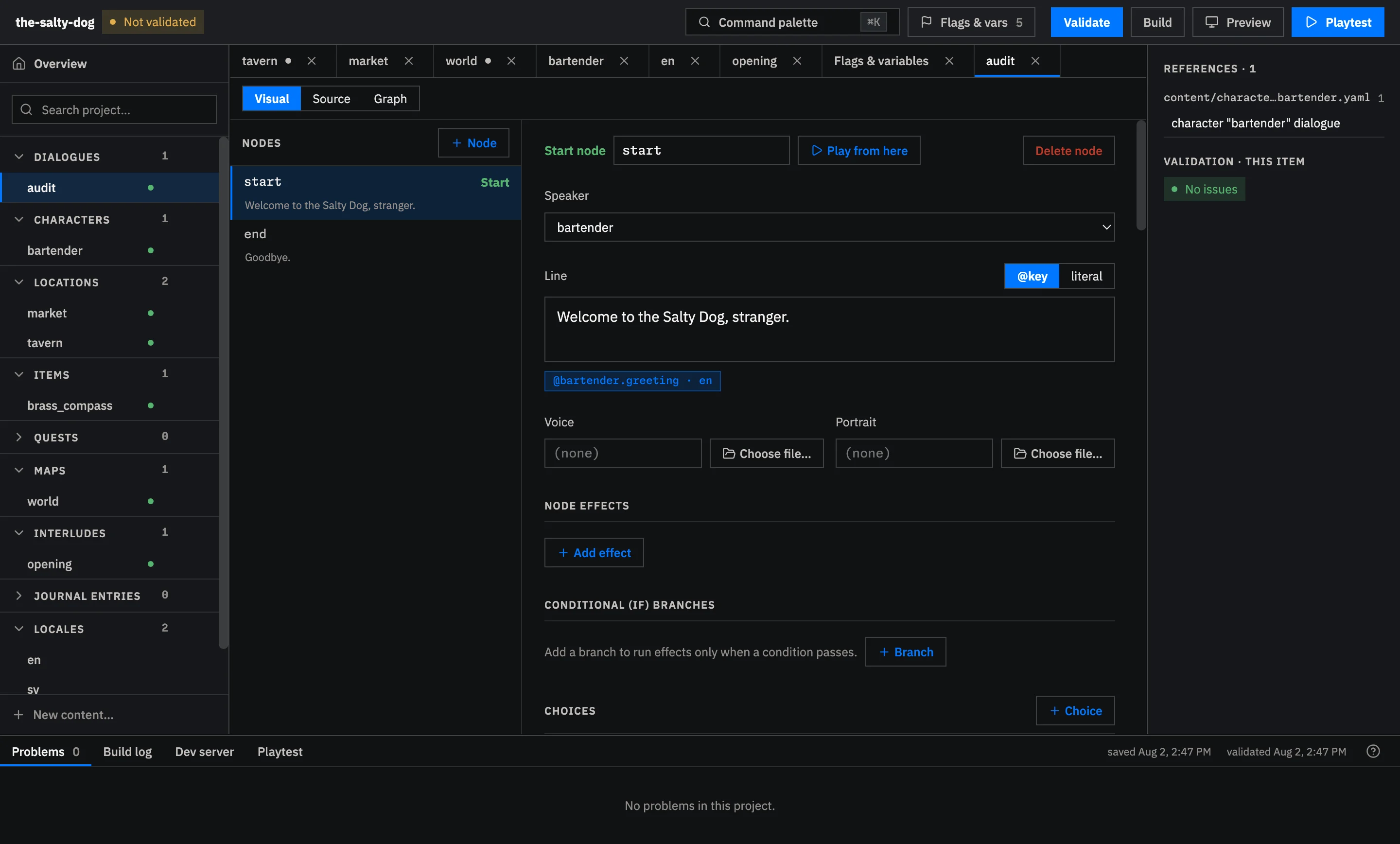
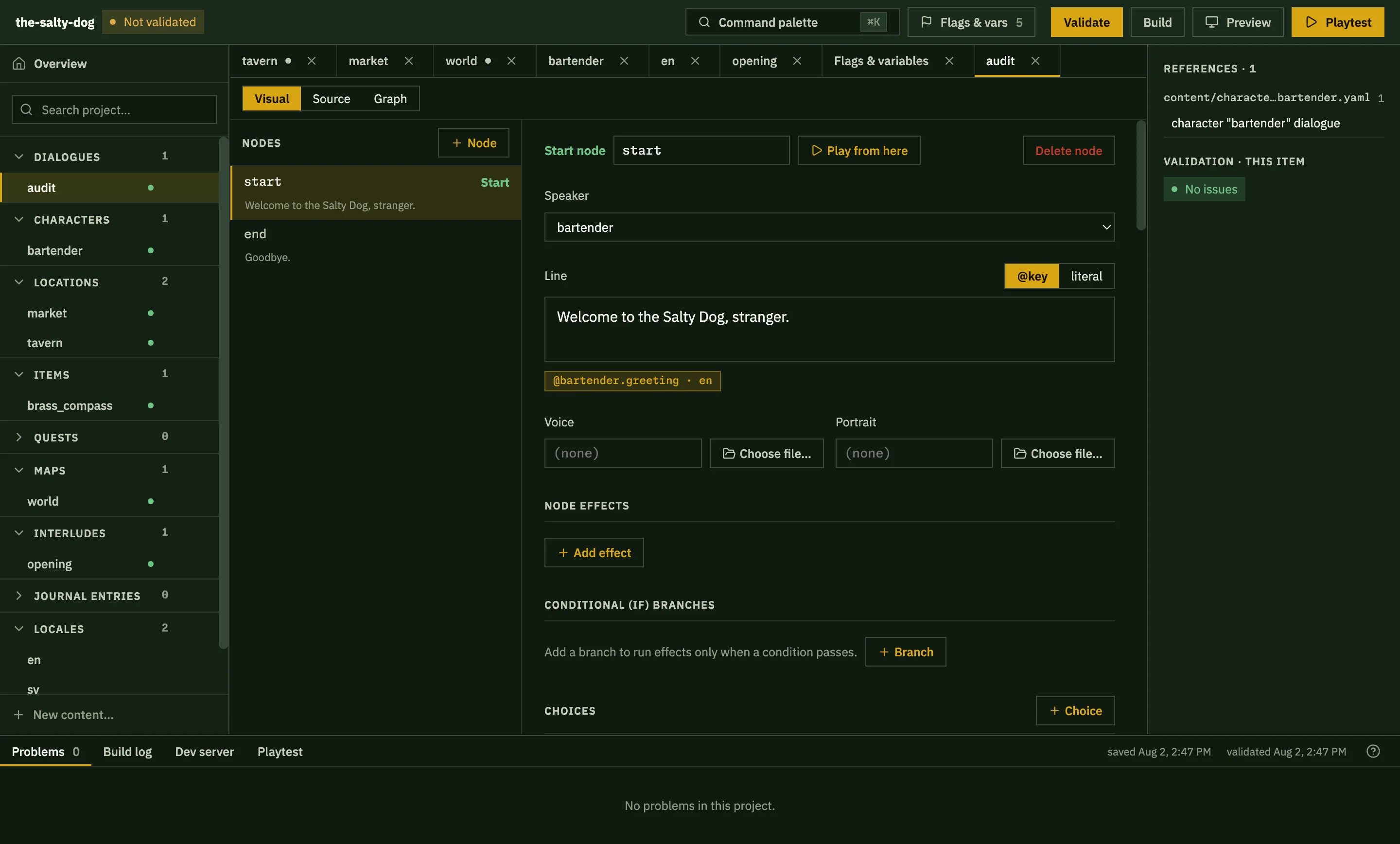
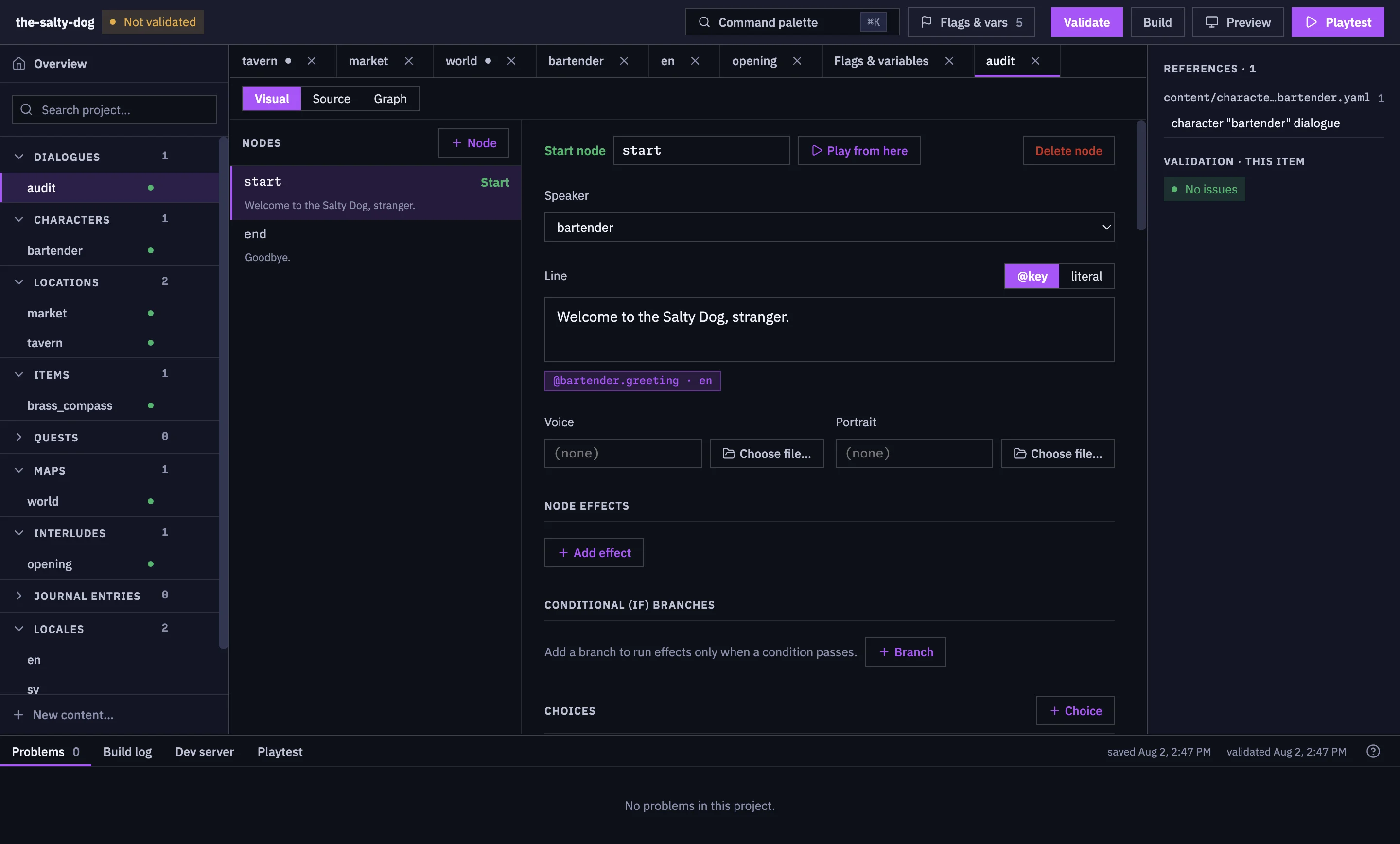
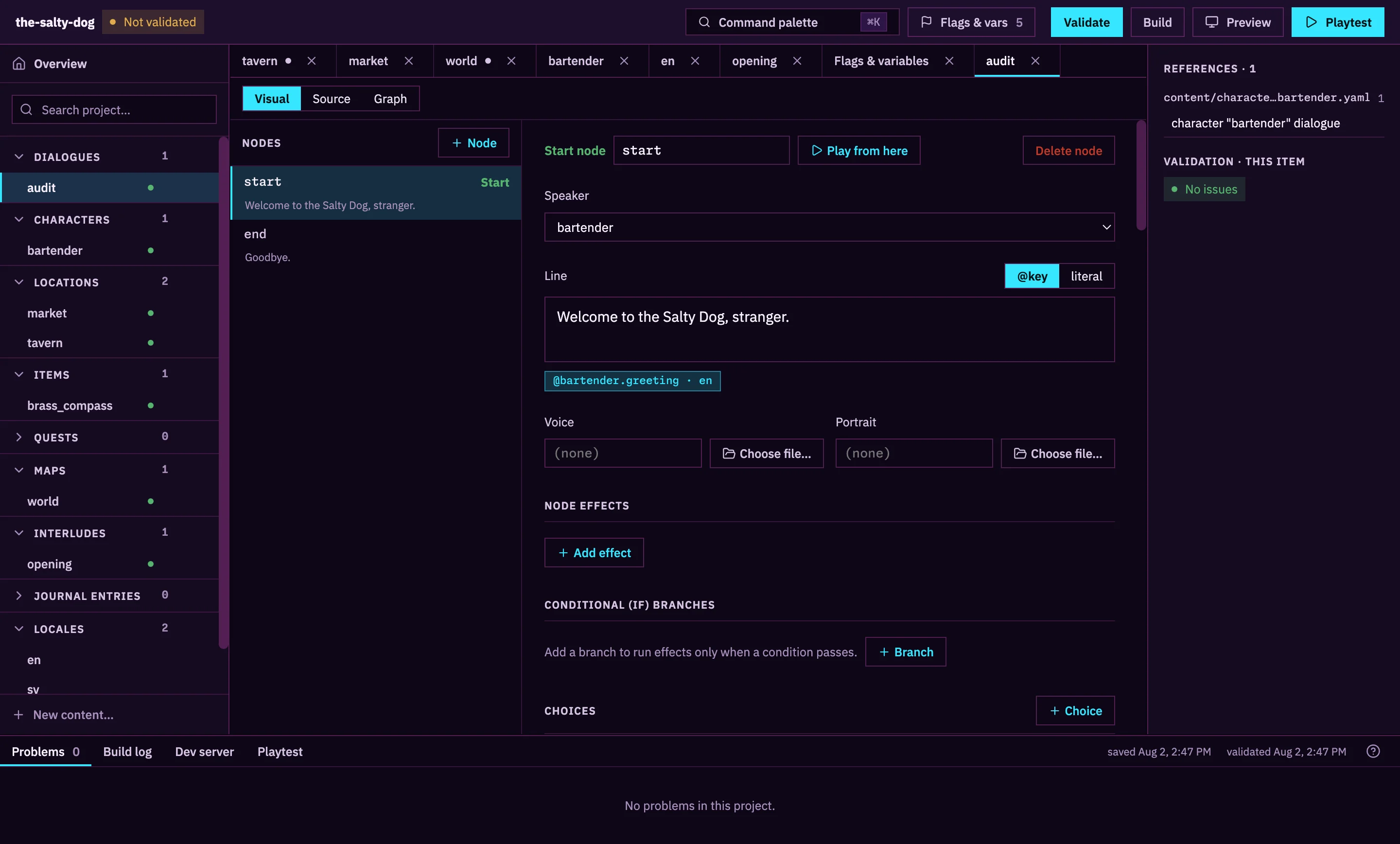
Choose an accent color
Section titled “Choose an accent color”The accent color marks selected tabs, active controls, and important actions. Each theme begins with an accent chosen to suit its palette.
To use another accent:
- Open Themes in the application menu.
- Open Accent Colors.
- Choose Red, Violet, Green, Pink, or Gold.
Choose Default to return to the accent shown in the gallery. Studio remembers your accent choice along with your theme.
Studio themes apply to the editor. The Preview window shows the colors and layout players will see.