Doodle Studio
Doodle Studio is the desktop editor for Doodle Engine projects. It works with the same project files as the command-line tools and includes Visual mode, Source mode, and a built-in playtester.
Install Doodle Studio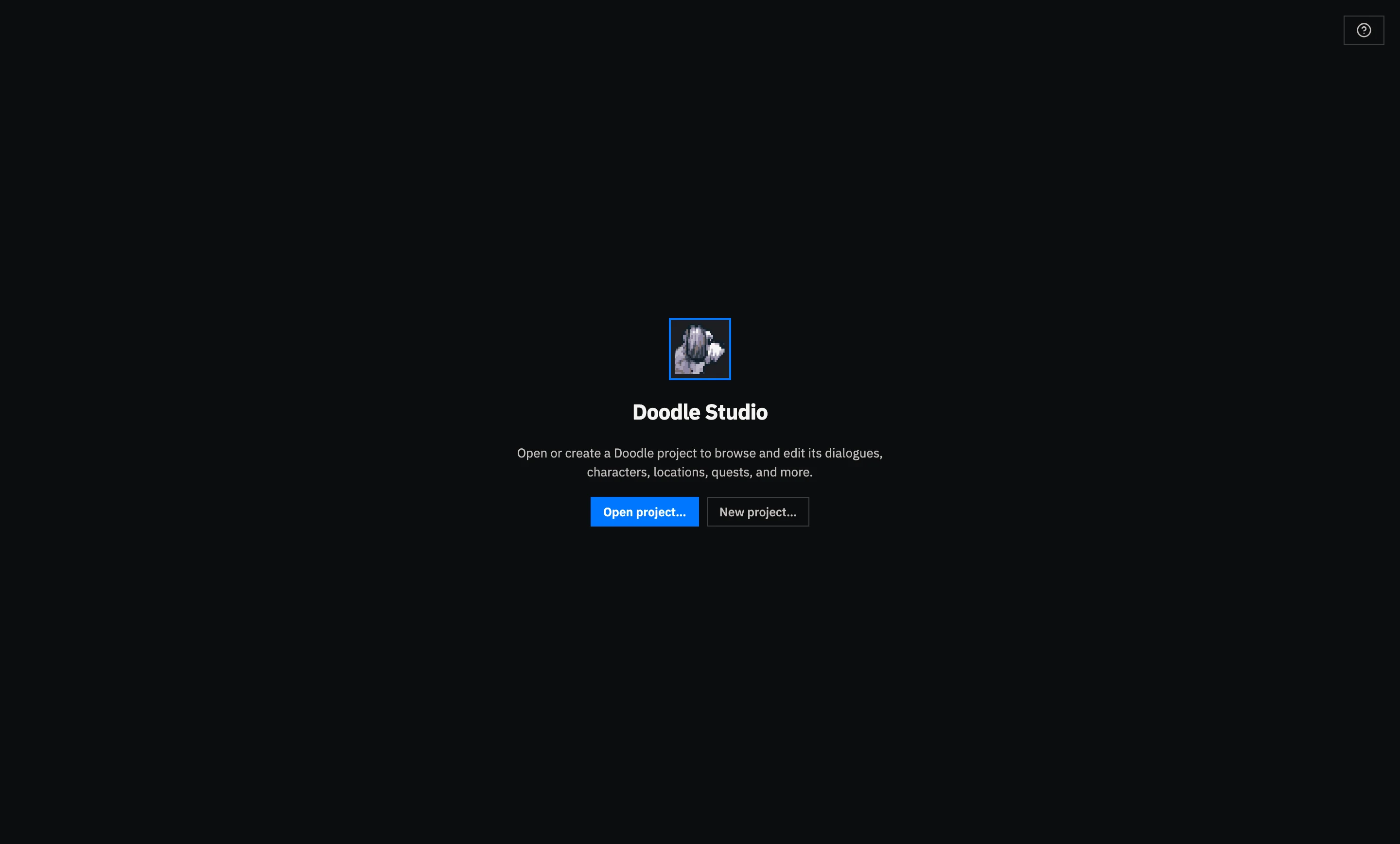
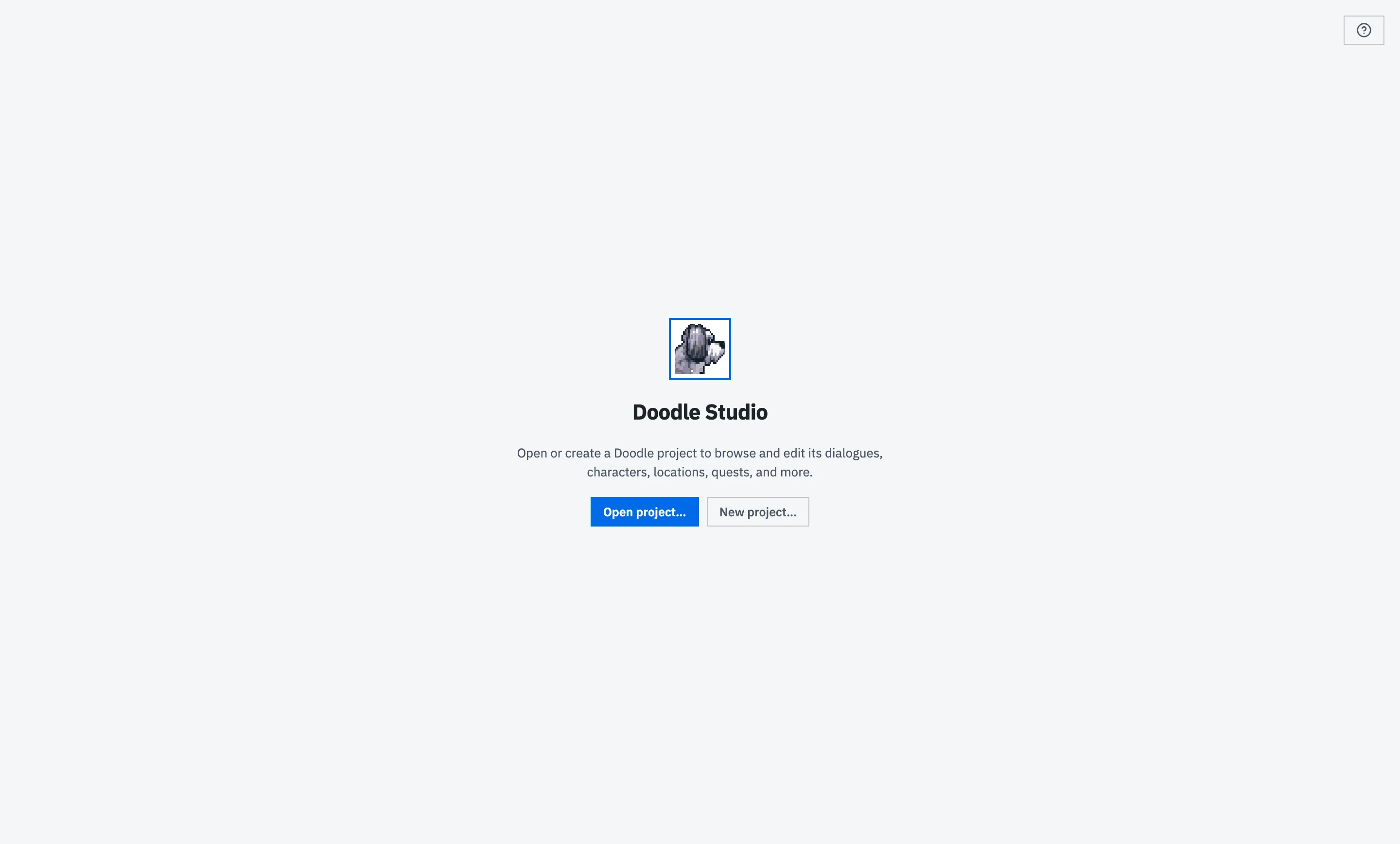
Start Studio
Section titled “Start Studio”Your First Game creates the starter project used on this page and introduces the Doodle Engine concepts behind it. Complete that tutorial first if you are new to Doodle Engine. If you already know the basics, you can follow along with another project and substitute its content for the examples below.
Launch Doodle Studio from your applications or Start menu. If you arrived here without installing it, complete the Doodle Studio setup first.
The Welcome screen lists recent projects and provides buttons for creating a project or opening an existing project folder.
Open the starter project
Section titled “Open the starter project”Select the starter project under Recent Projects. If it is not listed, select Open project… and choose the project folder.
The project opens on Overview, where you can check its engine version, dependencies, starting state, and the amount of content it contains. The project rail on the left opens the files you explored in the first-game tutorial.
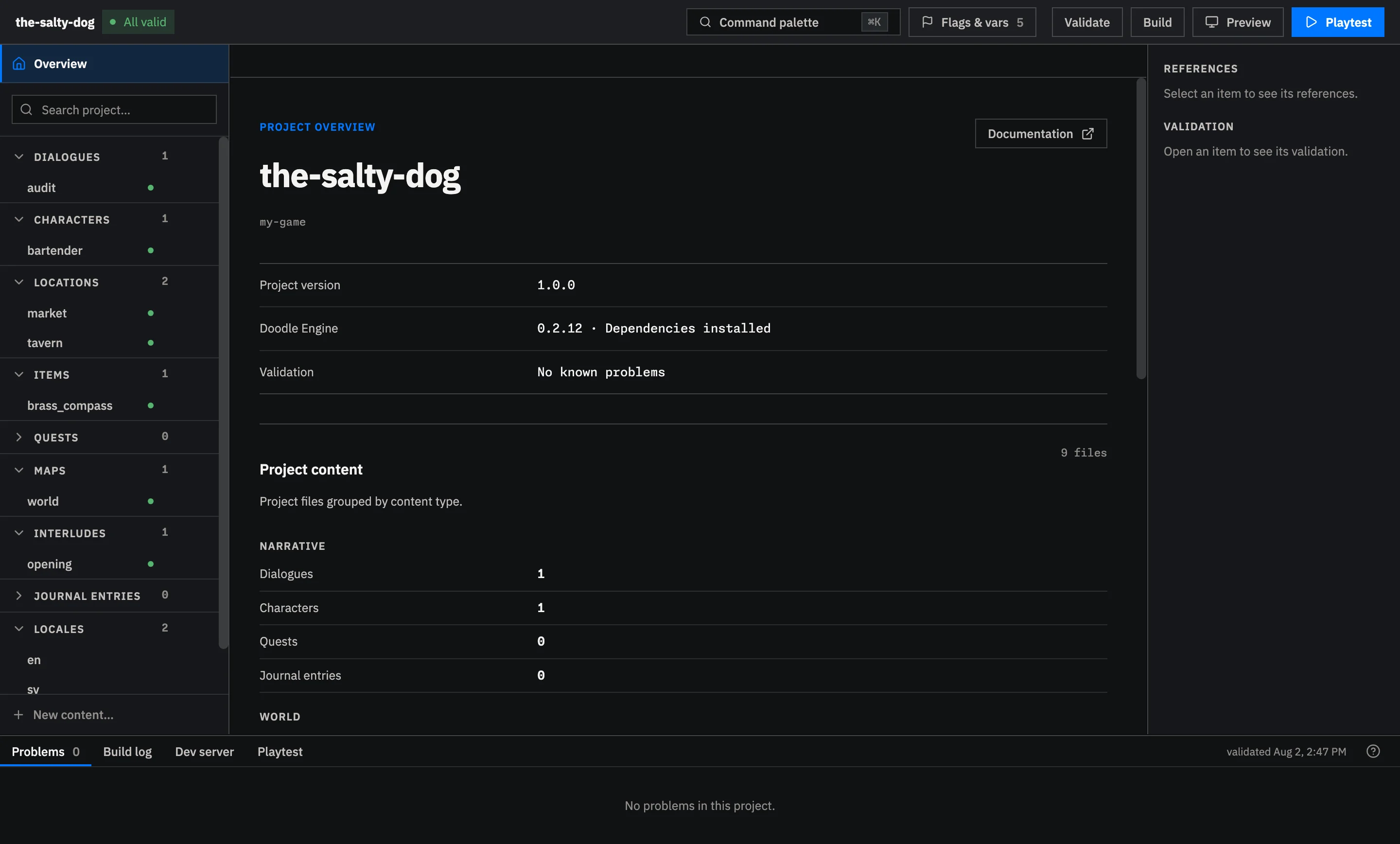
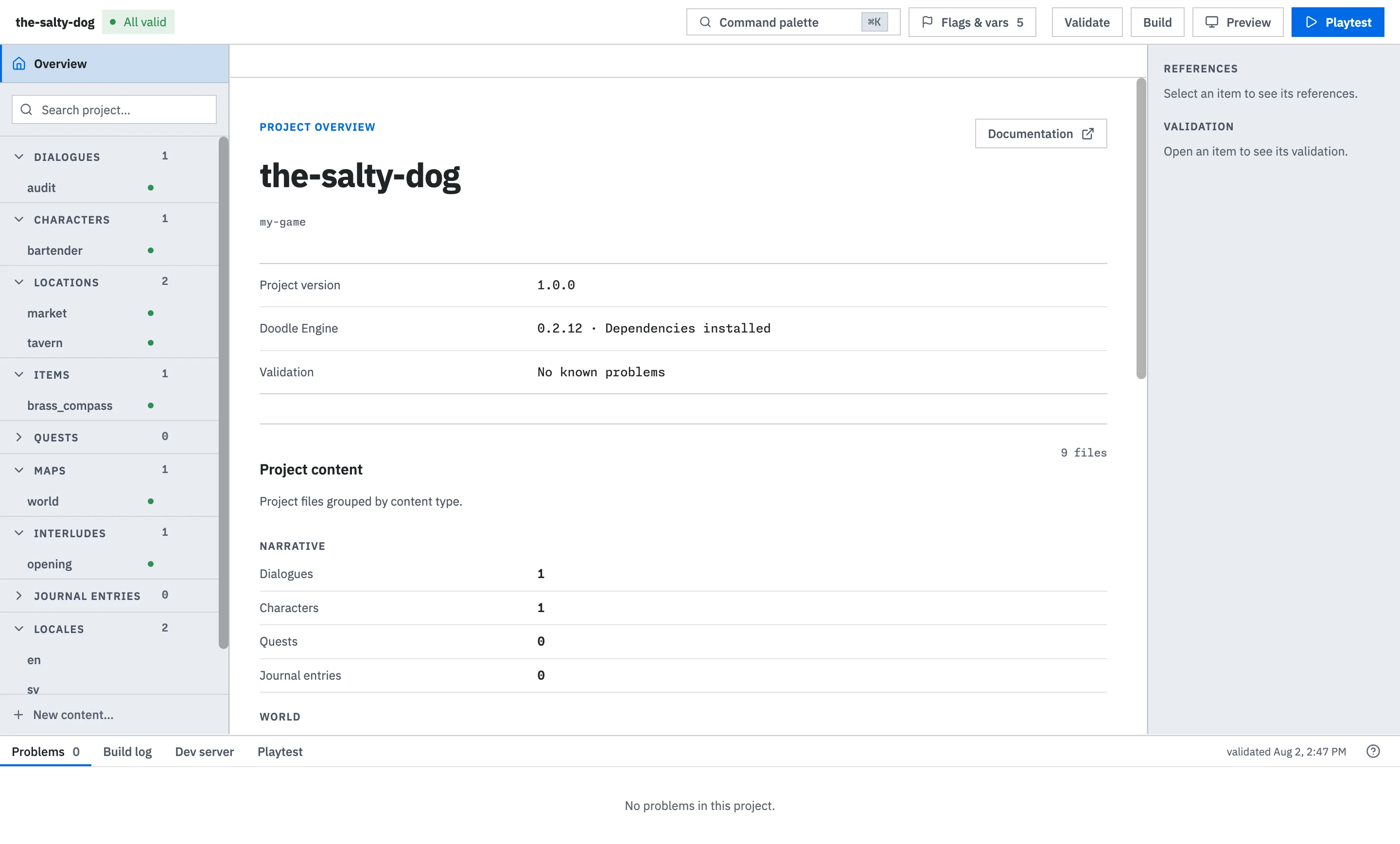
Under Dialogues, open bartender_greeting and select its start node. The center of the workspace now shows the conversation you edited earlier. Select Play from here to open the playtester at that node. This is the usual Studio workflow: find the content in the project rail, edit it in the center, then test the part of the game you changed.
Write in Visual mode or Source mode
Section titled “Write in Visual mode or Source mode”Studio gives Visual mode and Source mode equal support. Visual mode provides controls suited to the type of content you have opened. Source mode shows the underlying file with syntax highlighting and suggestions based on the current project. Both edit the same file, so you can move between them as you work.
Outside Doodle Studio, you can open the same .dlg, YAML, TypeScript, and CSS files in VS Code or another editor. Doodle Studio notices changes made by an outside editor, and the CLI provides the terminal commands for running, validating, and building the project.
What each part of Studio does
Section titled “What each part of Studio does”| Area | Position | Purpose |
|---|---|---|
| Top bar | Top | Shows project status and provides the command palette, Validate, Build, Preview, and Playtest. |
| Project rail | Left | Opens and organizes game content. |
| Editor | Center | Shows Visual, Source, or the read-only Graph view for the selected content. |
| References panel | Right | Shows where the selected item is used. |
| Bottom dock | Bottom | Holds project checks, output, state tools, and the playtester. |
Continue learning
Section titled “Continue learning”Continue with Projects in Studio to learn how Doodle Studio creates and opens projects, then read The Studio Workspace for the editing views and project-wide tools. The remaining Doodle Studio pages build on that foundation when you need a particular workflow.