Flags & Variables
Flags remember what has happened in your game. A flag is either on or off, while a variable holds a number or a word. Studio gathers these names from your game configuration and every dialogue that sets or checks them.
Open Flags & variables
Section titled “Open Flags & variables”Select Flags & vars in the top bar. The number beside it is the total number of flags and variables in the project.
You can also open the command palette with Ctrl+K, search for a flag or variable by name, and go directly to its details.
Find and inspect a name
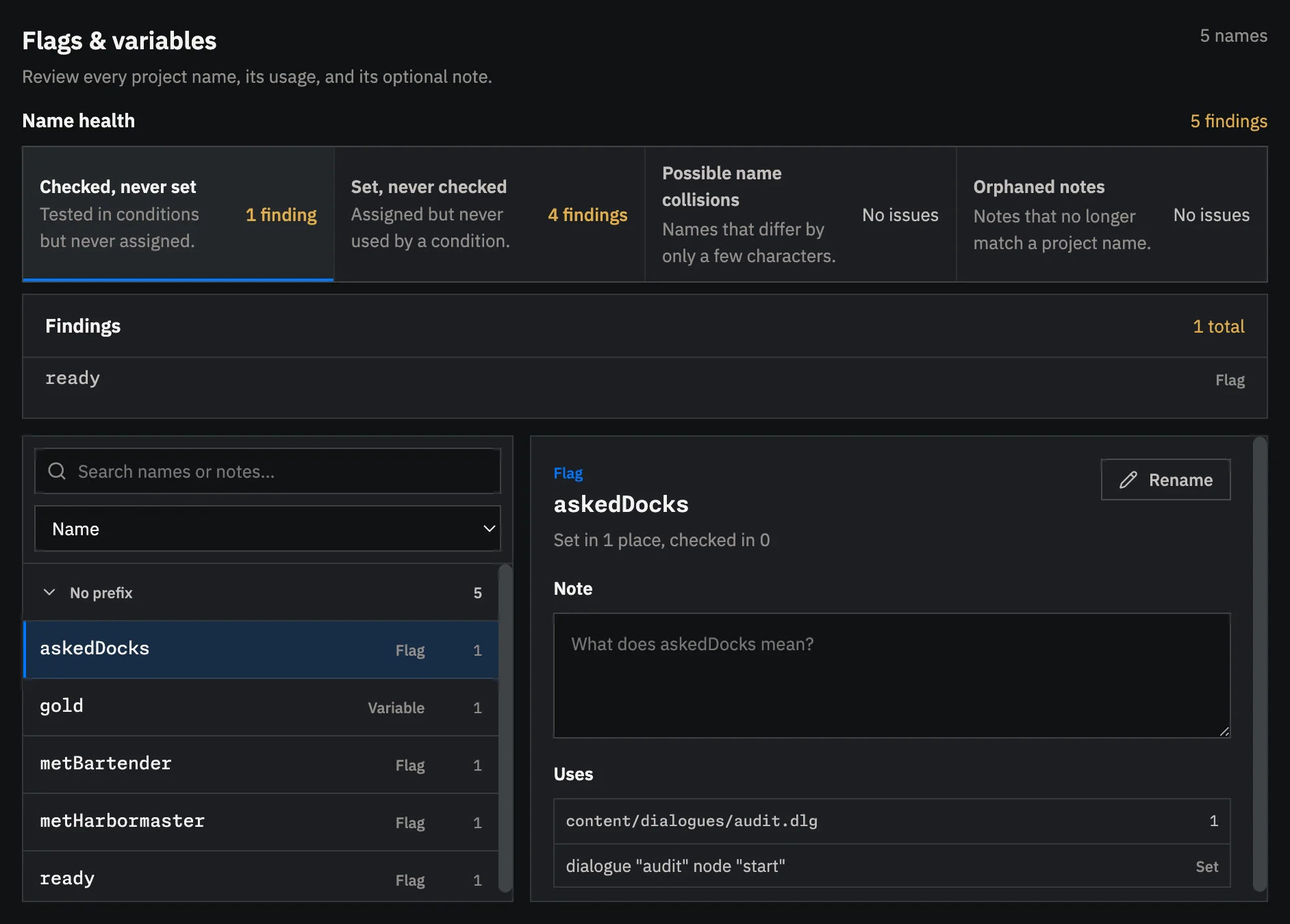
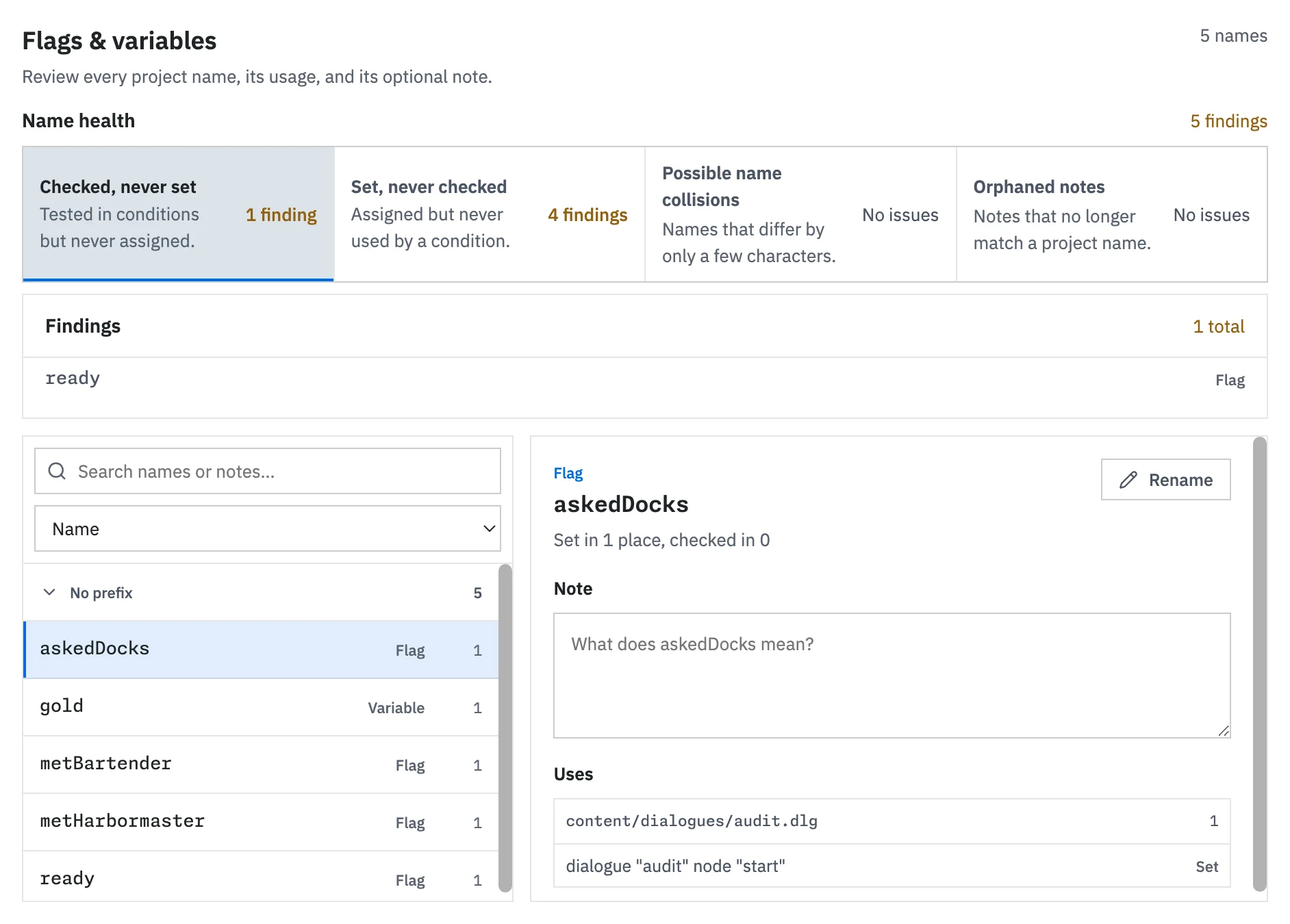
Section titled “Find and inspect a name”Use Search names or notes to narrow the list. Sort by Name or Most used. Names that begin with the same text before _, ., or : appear together in a collapsible group.
Select a name to see:
- How many places set it and how many places check it
- Every known use, grouped by file
- Its optional note
- The Rename action
Select a use to open that file. For dialogue uses, Studio also selects the relevant node.
Review likely mistakes
Section titled “Review likely mistakes”The four sections under Name health are quick project-wide checks:
- Checked, never set finds names that are tested but never changed. This often reveals a typo or a missing effect.
- Set, never checked finds state that is recorded but never used by a condition.
- Possible name collisions finds names that differ by a letter, capitalization, or a nearby transposition.
- Orphaned notes finds notes whose flag or variable is no longer used.
These are review aids, not validation errors. Open a section to inspect its names, then decide whether each one is intentional.
Add a note
Section titled “Add a note”Select a flag or variable and write a short explanation in Note. Studio saves it when you leave the field, or you can select Save note.
Notes are useful for meaning that the name alone cannot explain, such as which story moment sets a flag or what each numeric stage represents. They are stored in metadata/flags-and-vars.yaml with the project, so they can be reviewed and versioned with the game. Notes describe state. They do not create flags or variables, and they never change how the game runs.
If the notes file contains invalid YAML, Studio shows a warning and disables note editing until you fix or delete that file. It does not overwrite unreadable notes.
Rename safely
Section titled “Rename safely”Select Rename, enter the replacement, and review the files Studio will update. Renaming changes the known uses and moves the note to the new name.
Validate afterward if you also refer to the name in text Studio cannot identify automatically.
Reuse a name while writing
Section titled “Reuse a name while writing”Flag and variable fields in the dialogue builders suggest names already used by the project. Suggestions include use counts and notes. If the text does not match an existing name, Studio marks it as a new flag or new variable, which helps catch spelling mistakes before they become unreachable story paths.
When the field contains an existing name, Flag details or Variable details remains below it with the use summary and note. Select Edit in Flags & variables to open that name on the full page.
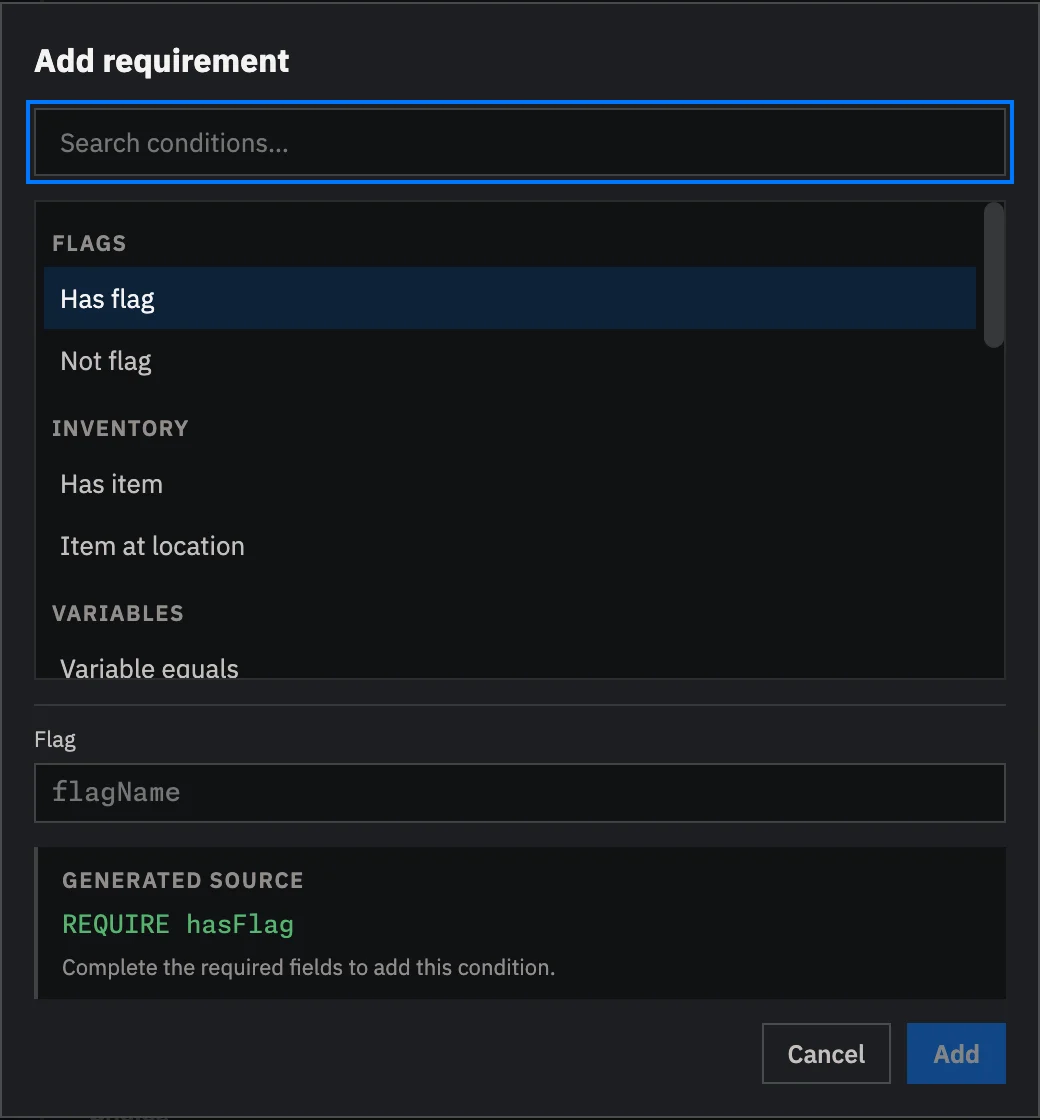
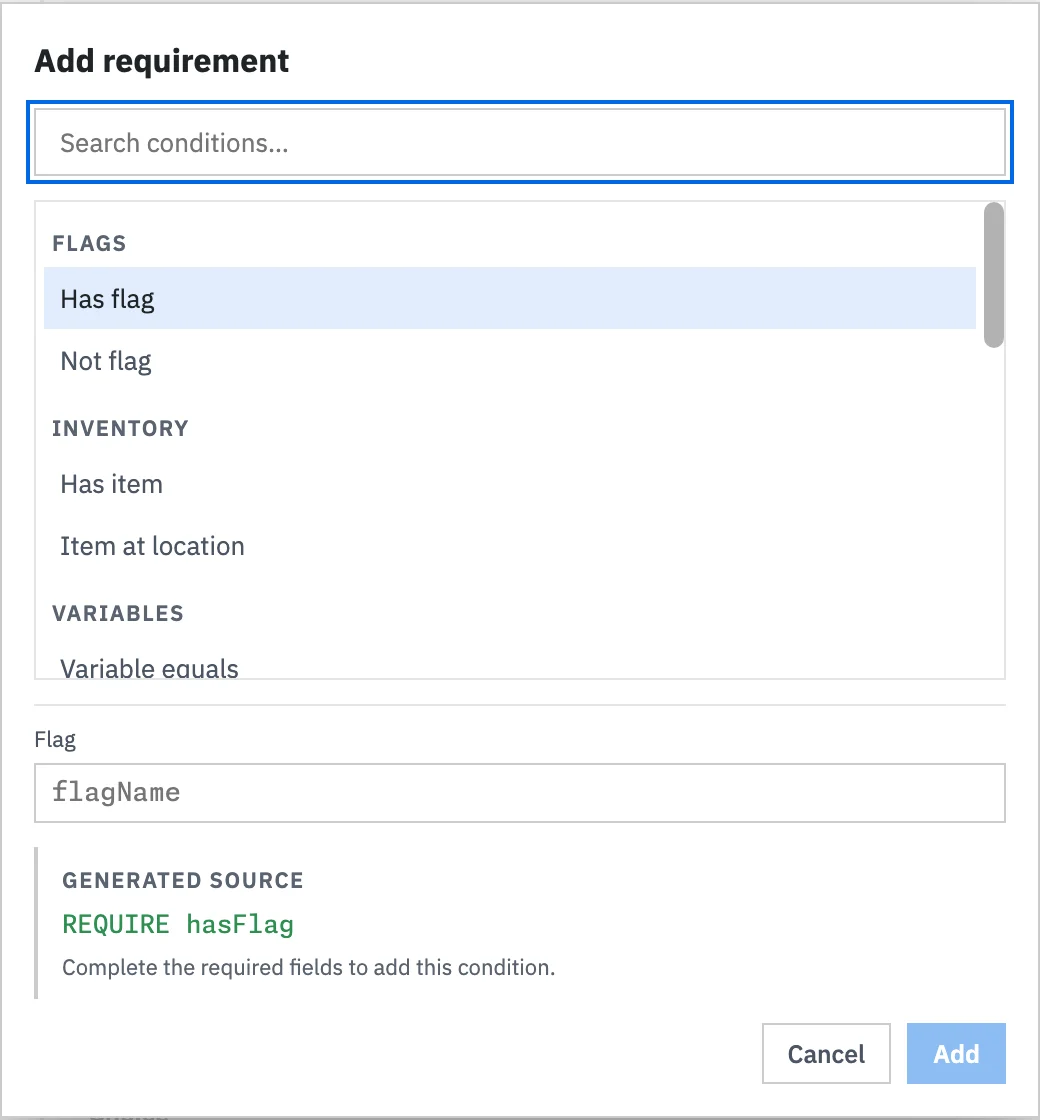
Starting flags and variables in Game Config use the same name suggestions. Stats also offer existing-name suggestions in dialogue builders, but project notes apply only to flags and variables.