Playtesting in Studio
Studio’s playtester uses the current project content to test dialogue branches and game state quickly.
Start a conversation
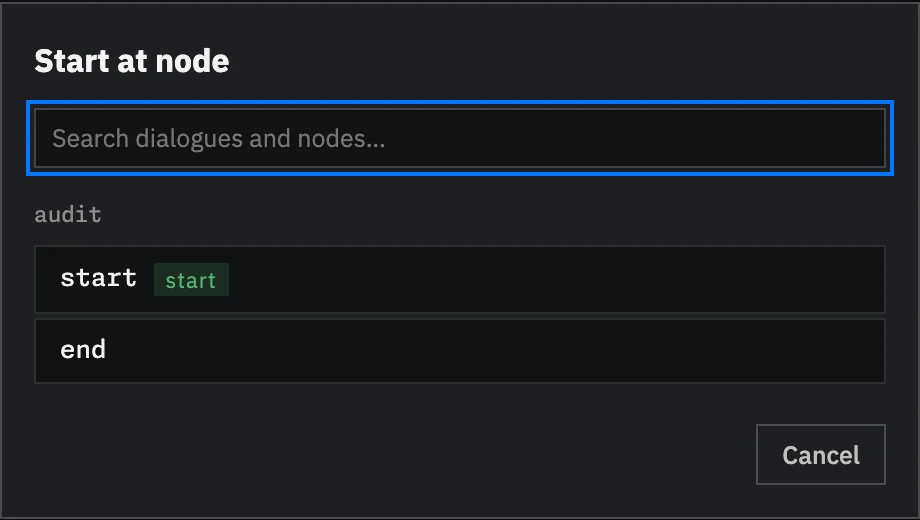
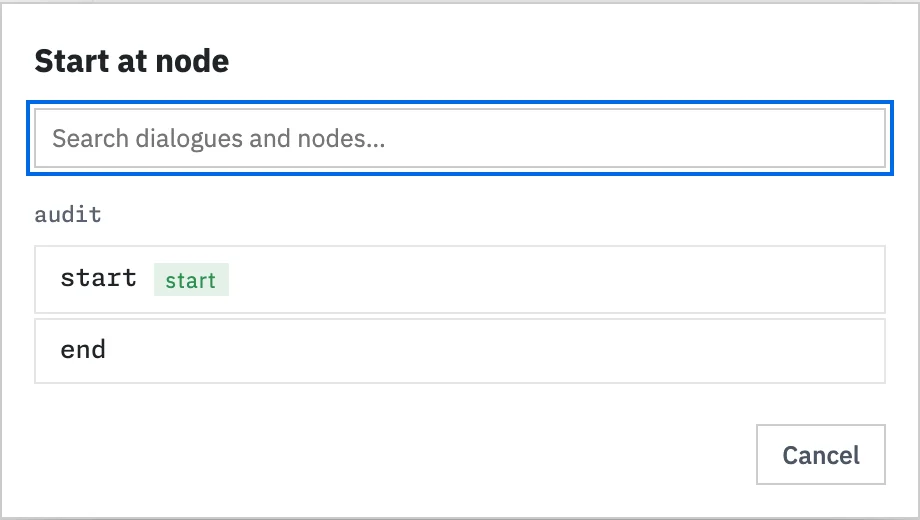
Section titled “Start a conversation”Select Playtest in the top bar or bottom dock. Then select Start at node…, search for a dialogue, and choose the node where testing should begin.


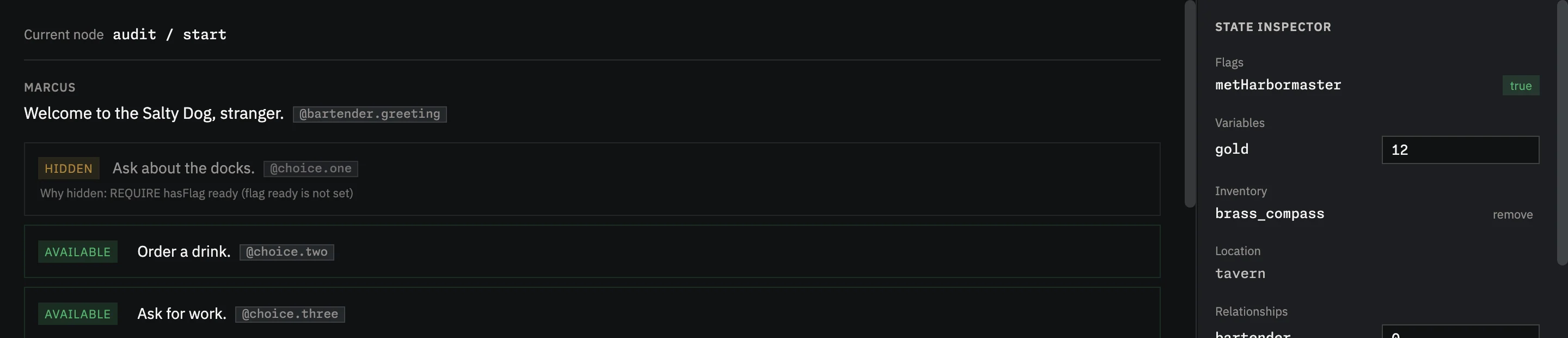
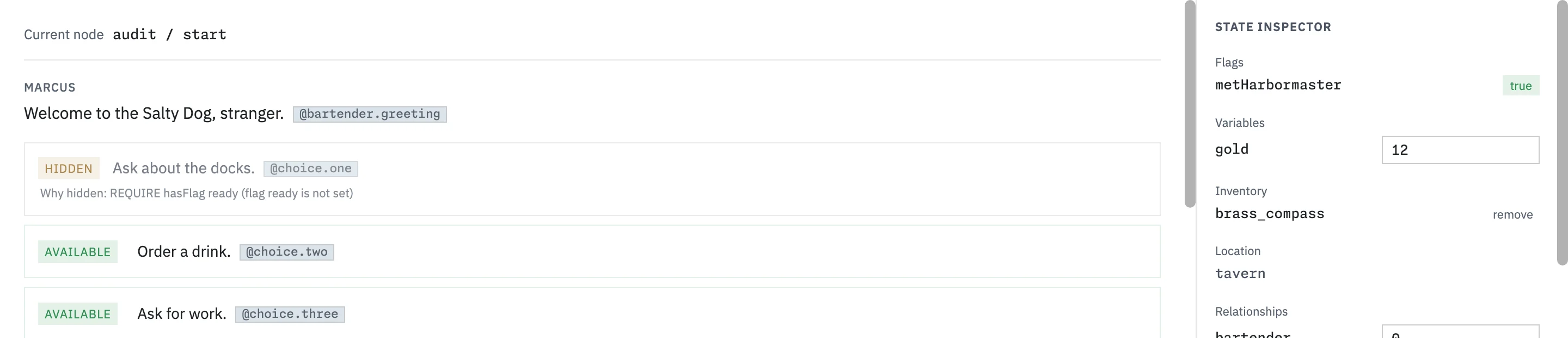
The playback column shows the resolved speaker and line, followed by every choice the engine evaluated. Choices marked AVAILABLE can be selected. Choices marked HIDDEN stay visible to you with the requirement that failed and its current value, so you can see exactly why the player would not get that option.
Shape the test state
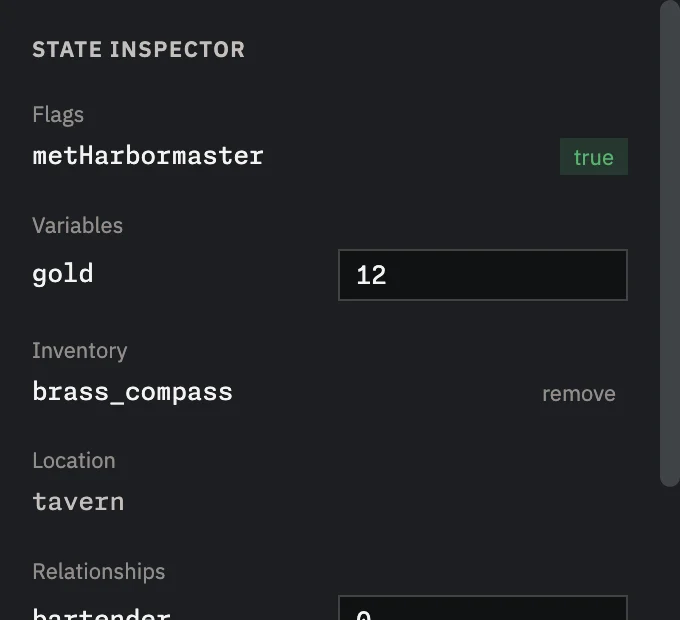
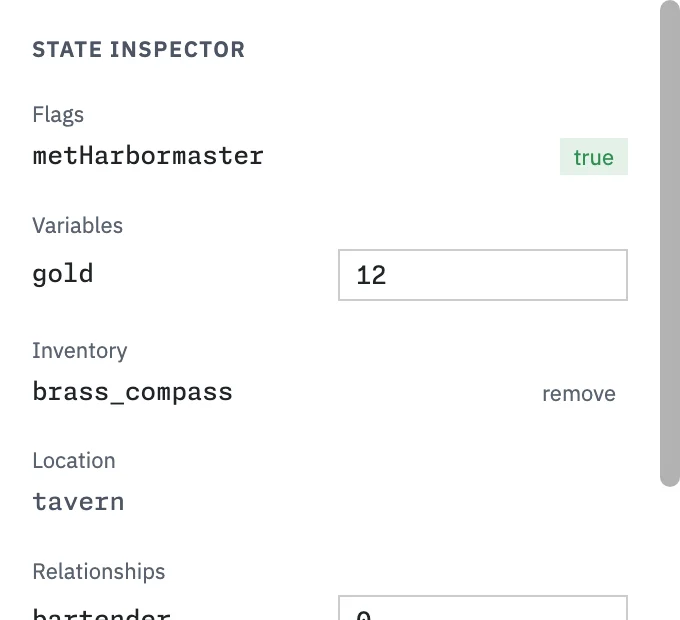
Section titled “Shape the test state”The state inspector provides controls for the current playtest state:
- Toggle flags
- Edit variables
- Remove inventory items
- Set quest stages, see whether each quest has started, is active, or is complete, and set or clear the tracked quest
- Change character relationships
- Confirm the current location and locale
Changes take effect immediately, so the available choices and displayed text update as they would in the game.
Save checkpoints
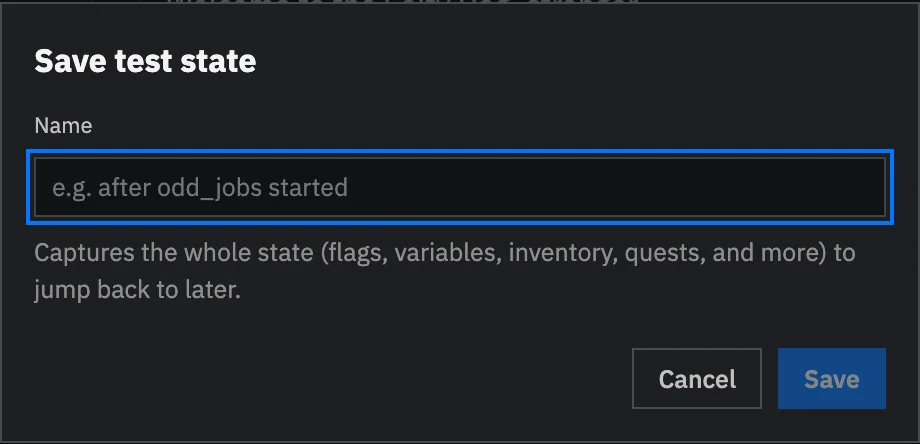
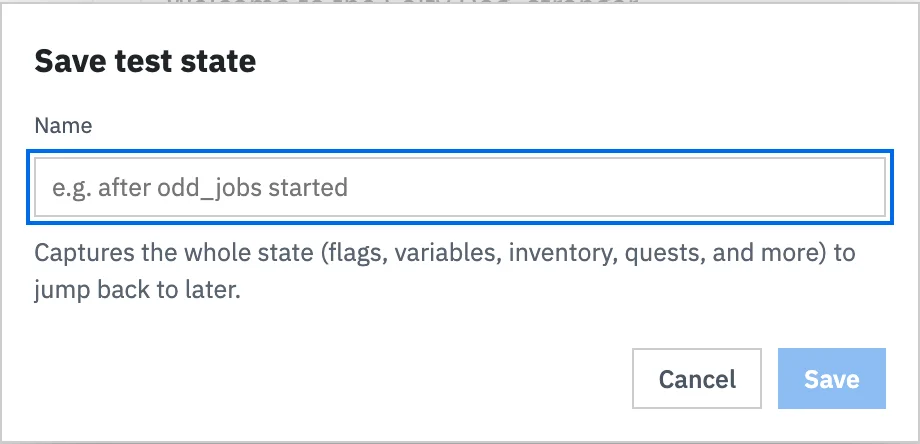
Section titled “Save checkpoints”Select Save test state, give the state a descriptive name such as odd_jobs_started, and save it. The checkpoint stores the full engine state for this project.
Select a saved checkpoint to restore it later. Checkpoints are useful for recurring scenarios such as a completed quest, a high relationship value, or a particular inventory combination.
Read the debug trace
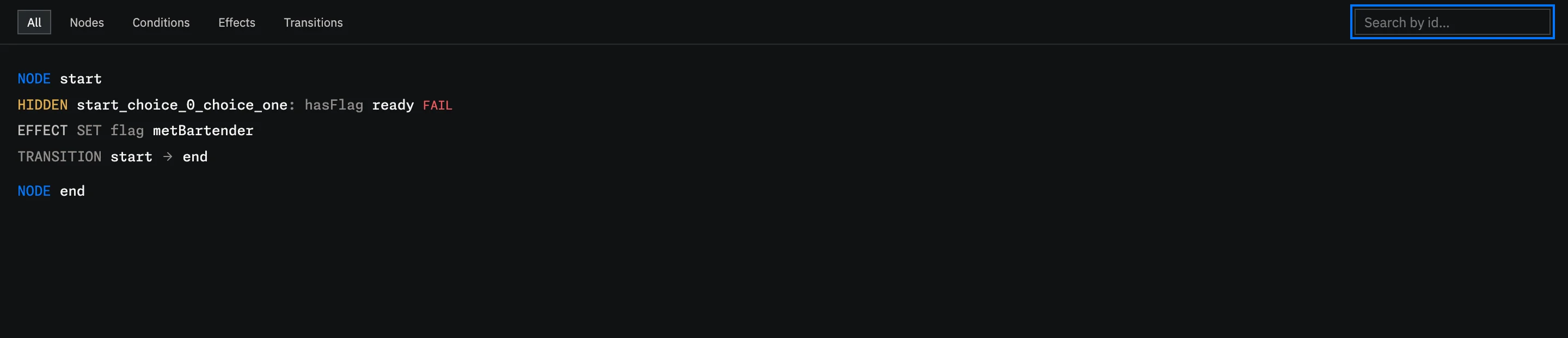
Section titled “Read the debug trace”Select Debug trace to inspect the events produced by the session:
- Node entry
- Condition evaluation
- Filtered choices
- Applied effects
- Dialogue transitions
- Engine errors
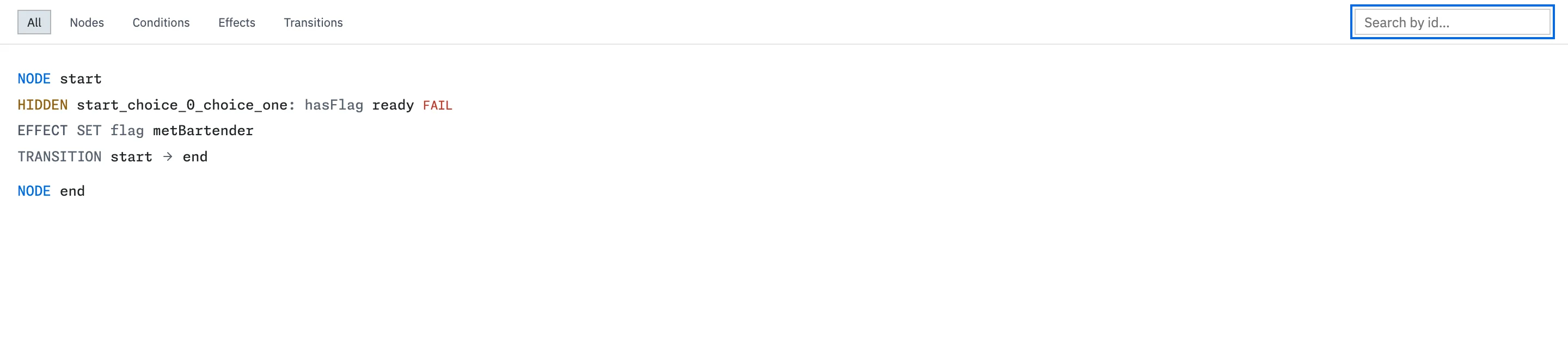
Search by an ID or symbol to focus the trace. Use it with the hidden-choice explanations to see why a branch behaved as it did.
Refresh after editing
Section titled “Refresh after editing”After Studio reloads edited content, the playtester keeps the current state and position when possible. If the active dialogue node no longer exists, the session restarts with the updated content.
Use Restart for a clean run from the game configuration’s starting state.
Test another language
Section titled “Test another language”After you add localization, use the Locale selector in the playtest toolbar to run the same conversation in another language. The current story state stays in place while the displayed text changes.
See Localization in Studio for the setup steps.
See Flags & Variables when deciding which variables should appear in the default game interface and which should remain internal.